Your First Notebook
Make a notebook, put it on a kernel, run something, write down what it was for, and save it. This page assumes only that Zasper is installed and open on a folder you can write to.
Trust The Folder
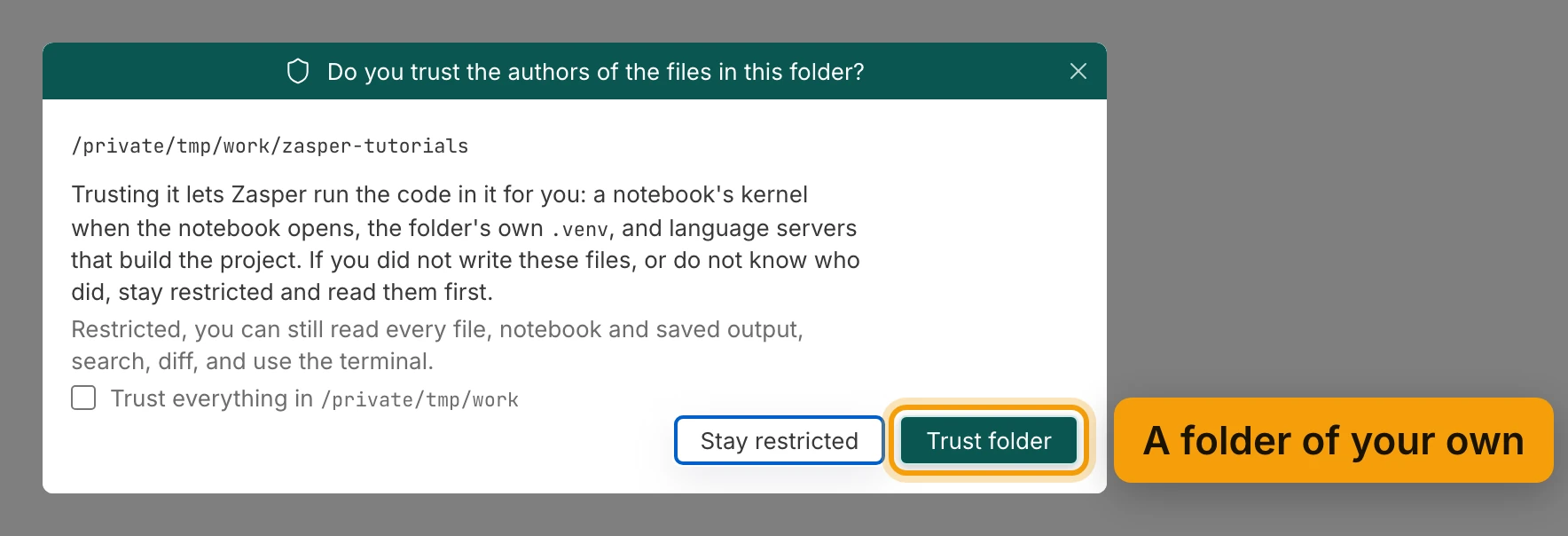
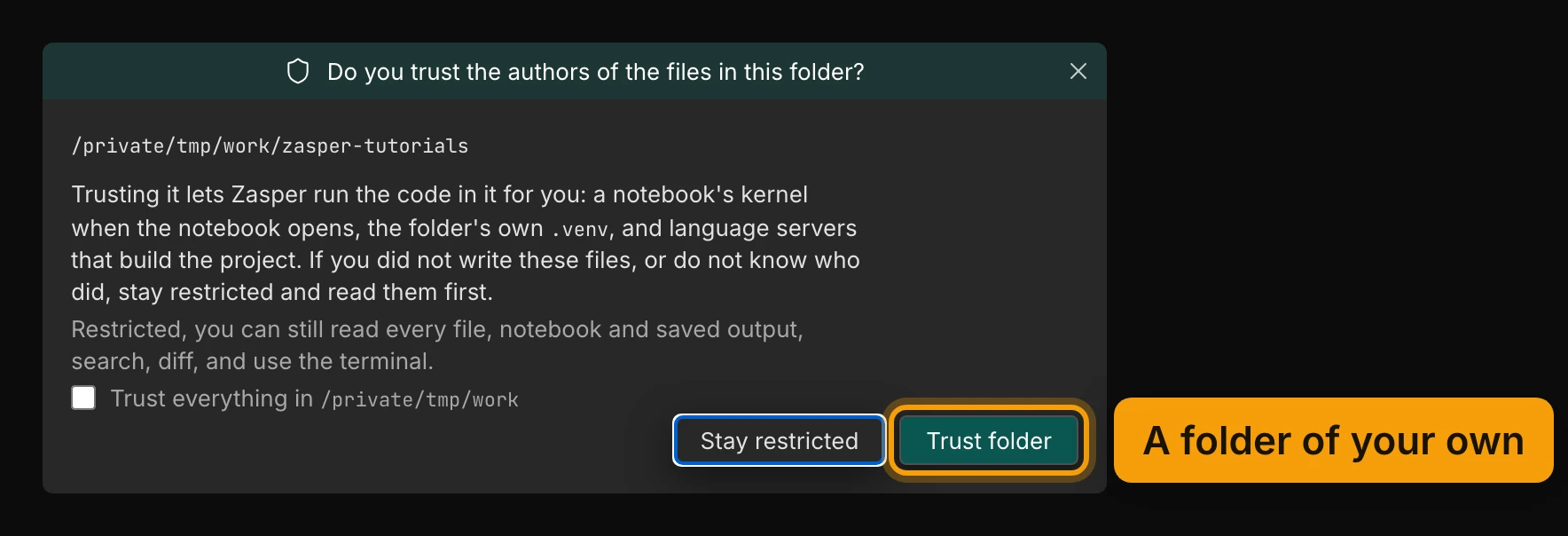
The first time Zasper opens a folder, it asks Do you trust the authors of the files in this
folder? For a folder of your own, press Trust folder. Until a folder is trusted Zasper runs
none of its code: no kernel, no project .venv, no language server that builds it. A project you
downloaded cannot run code just by being opened. Trusted Folders covers what
else it governs.
Make The Notebook
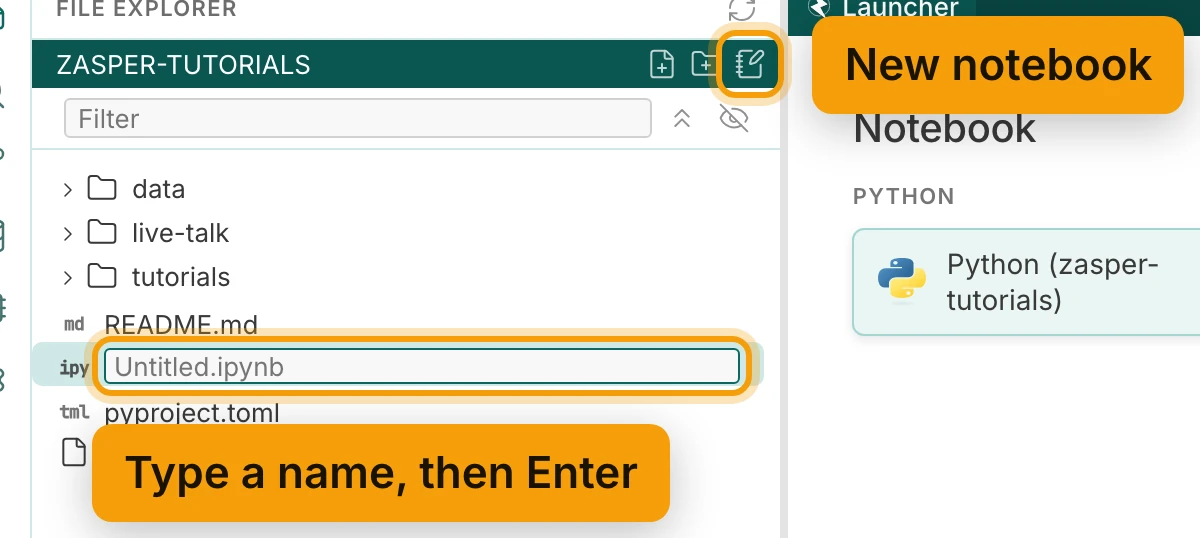
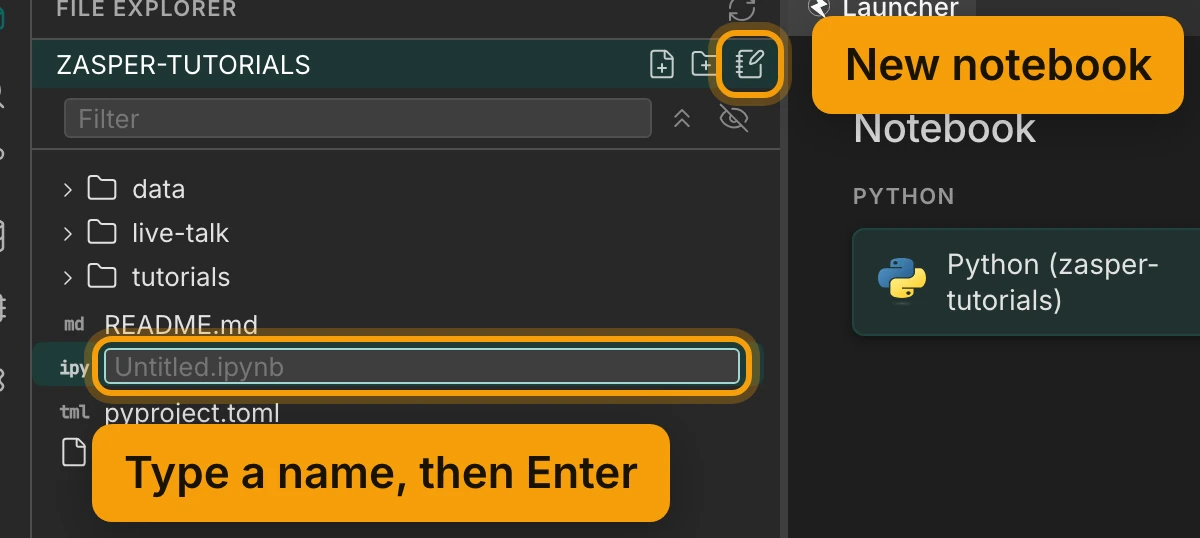
The file explorer is the first icon in the rail on the left, and the strip under its title names the folder Zasper was started in. The three buttons at the right-hand end of that strip are New file, New folder and New notebook. Press New notebook.
The notebook arrives with an empty name box in the tree, Untitled.ipynb greyed in it as a
placeholder. Type a name and press Enter; .ipynb is added if you leave it off, and Escape
keeps Untitled.ipynb. Making the notebook does not open it: click its row in the tree to open it
in a tab. To put it somewhere other than the top of the project, right-click a folder in the tree
and choose Add Notebook instead.
Pick A Kernel
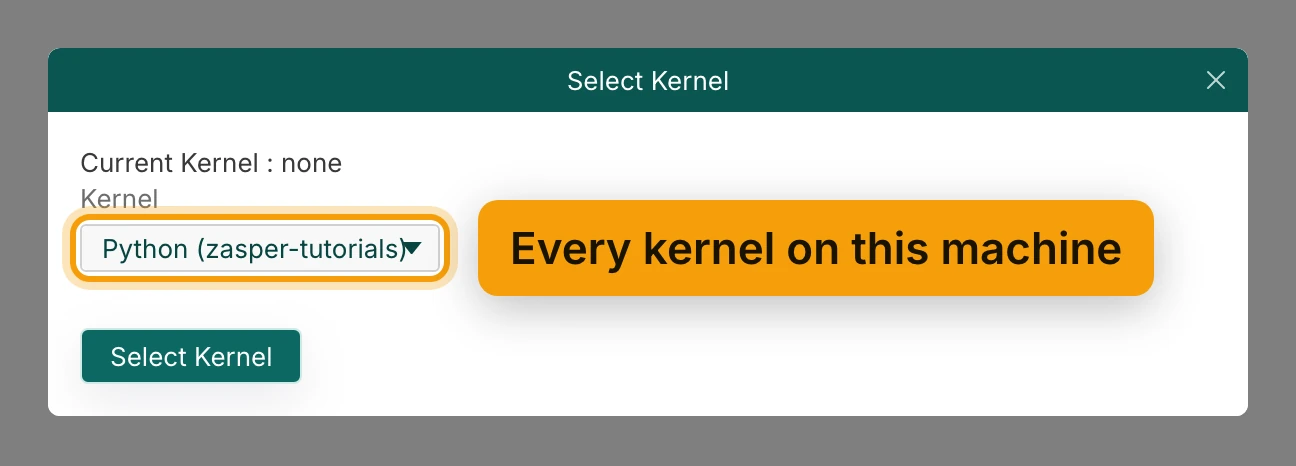
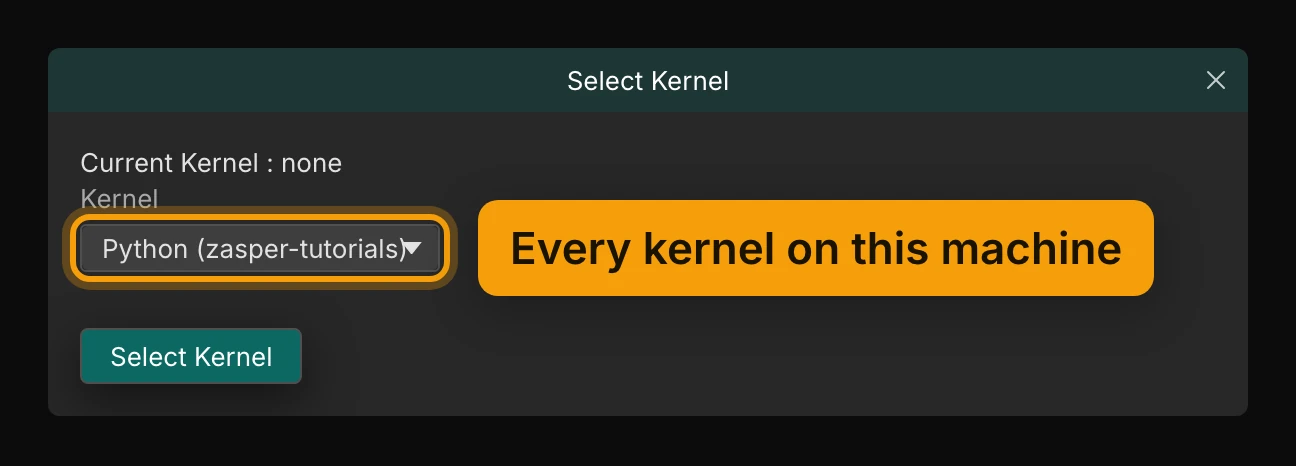
A notebook made this way does not name a kernel yet, so the first thing it shows is Select Kernel:
Current Kernel : none, and a Kernel list to pick from. Pick one and press Select Kernel. The
list is every kernel installed on this machine, whatever jupyter kernelspec list prints,
plus the project’s own .venv once the folder is trusted. If the environment you meant is not in
it, install ipykernel into that environment and open the notebook again. Installing Jupyter
Kernels and Working with Conda cover
how they are found.
Once the kernel has started, its name and a status dot sit at the right-hand end of the notebook’s toolbar: the dot is green while the kernel is idle, red while it is working, and grey while it is starting or disconnected. Click the name to move the notebook to a different kernel later.


The status bar at the bottom shows how much memory the kernel holds, and on a machine with an NVIDIA GPU, how much GPU memory. Press it for more; Exploring Data explains the figures.
Run A Cell
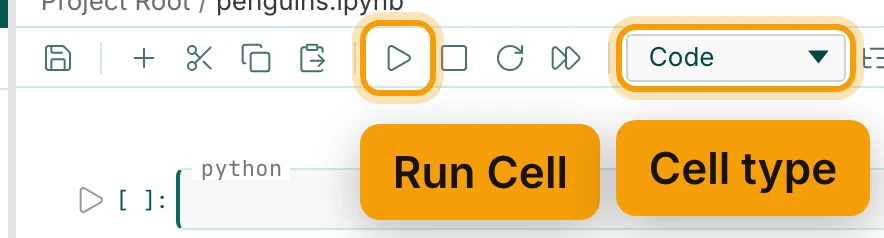
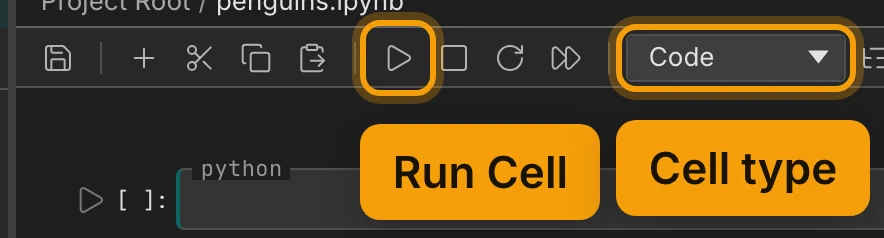
Click into the empty cell and type. Run Cell in the toolbar runs it. So do two chords, and the difference is where you end up:
| Action | macOS | Windows / Linux |
|---|---|---|
| Run Cell and Select Next | ⇧⏎ |
Shift+Enter |
| Run Cell | ⌃⏎ |
Ctrl+Enter |
On the last cell of the notebook, ⇧⏎ adds a new one to carry on in.
The number in the left margin is the cell’s turn with the kernel. [ ]: has never run, [*]: is
queued behind another cell, a spinner takes its place while the cell runs, and [7]: was the seventh
thing this kernel was asked to do, not the seventh cell in the file. Restart the kernel and the
count starts again from one.
The run button sits beside the count and becomes a stop button while the cell runs. On the cell’s border, its run time counts up while it runs and stays there after, so you can tell a slow cell from a stuck one. A cell waiting its turn says queued there instead.
![Two cells. The first, time.sleep(30), shows a stop square and a spinner in its margin, and running · 13 s on its border, ringed and labelled Running, and for how long. The second shows [*]: in its margin and queued on its border, ringed and labelled Queued behind it.](/static/images/tutorials/your-first-notebook/run.light.webp)
![Two cells. The first, time.sleep(30), shows a stop square and a spinner in its margin, and running · 13 s on its border, ringed and labelled Running, and for how long. The second shows [*]: in its margin and queued on its border, ringed and labelled Queued behind it.](/static/images/tutorials/your-first-notebook/run.dark.webp)
Read What Comes Back
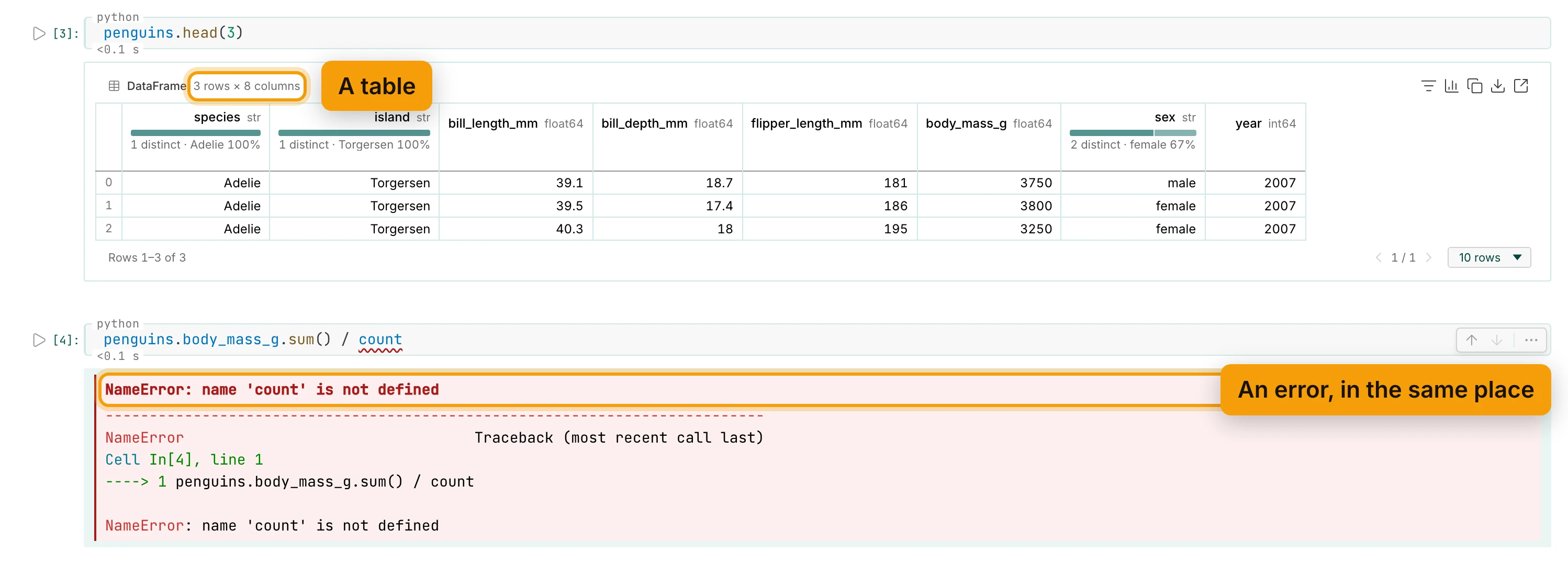
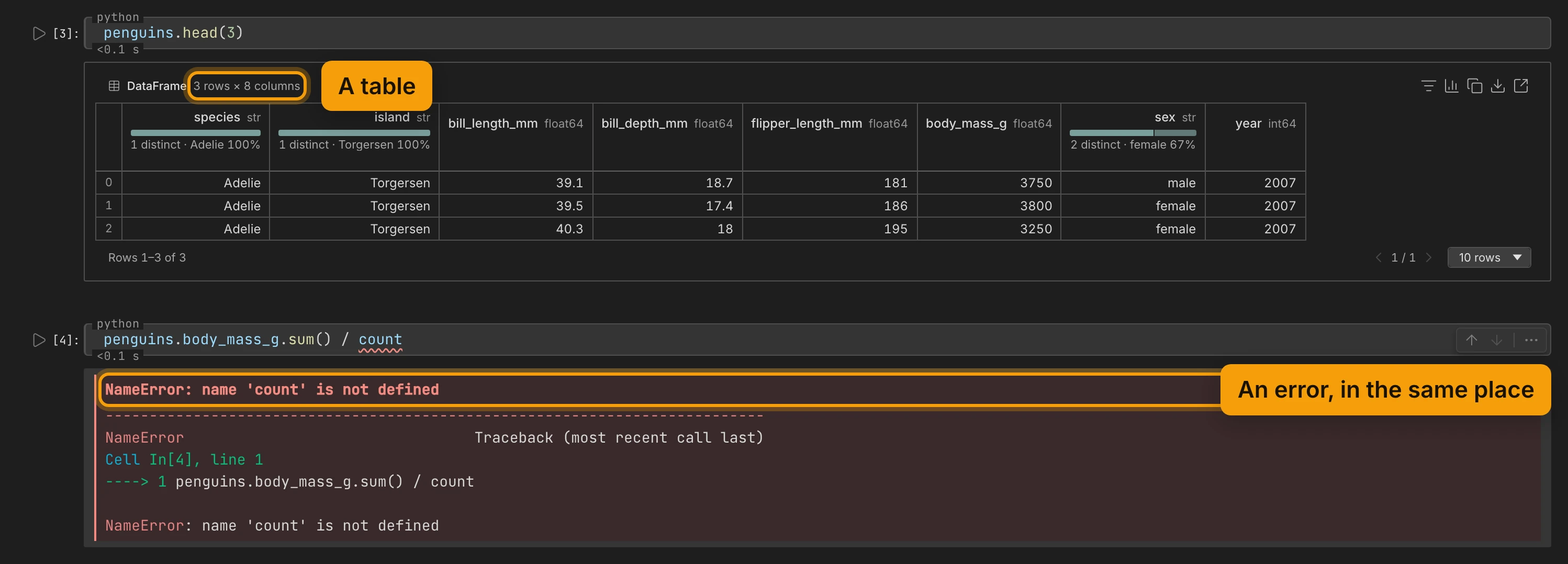
Anything the cell printed, returned or drew appears under it, in the order it happened: a line of
text, a table, a figure. A cell that ends in an expression shows that expression’s value, which is
why penguins.head(3) on a line of its own is enough. Notebook Support
lists what Zasper renders and what it does not.
An error arrives in the same place rather than in a dialog. The kernel keeps everything it had, including the variables from the cells that worked, so the usual fix is to correct the line and run it again.
Output that runs to hundreds of lines is capped at a height you can scroll inside. Expand or
Collapse Output, Clear Cell Output and Clear All Outputs have no key binding; run them from
the command palette (⇧⌘P / Ctrl+Shift+P). The first two are also in the menu over a cell, as
Expand Output and Clear Output.
A cell that will not finish is stopped with Interrupt, the square in the notebook toolbar. It has no key binding. Restart beside it throws away the variables and starts the kernel again, which is the answer when interrupting does not take.
Say What It Was For
Change a cell to Markdown (the picker in the toolbar, or ⌃⇧M / Ctrl+Shift+M), write in it,
and run it with ⇧⏎ to render it. ⌃⇧Y /
Ctrl+Shift+Y turns a cell back into code, and double-clicking rendered prose opens its source
again.
To add a new cell instead, point at the gap between two cells. A rail appears with Code, SQL,
Markdown and Raw, and each one adds that kind of cell there. The same rail stays visible under
the last cell. The label in the top border of a cell says which kind it is: the kernel’s language,
such as python, for a code cell, sql or raw for those, and markdown while a Markdown cell is
open for editing.
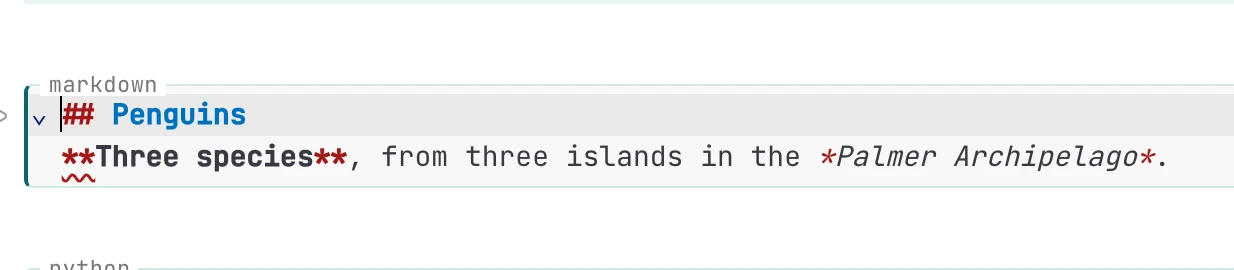
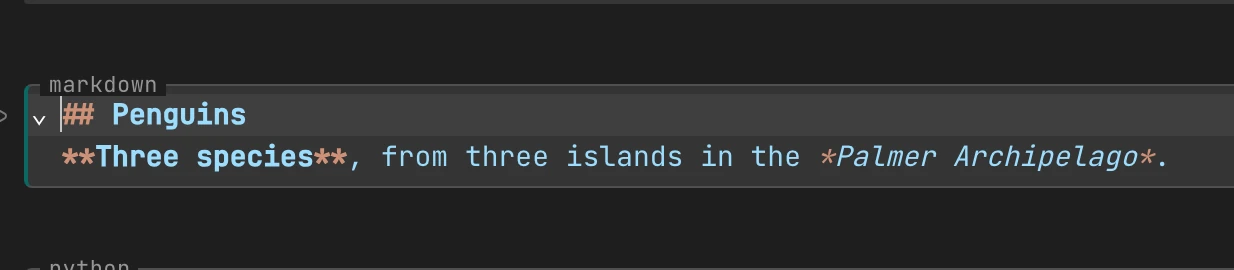


⇧⏎: a heading and a paragraph.Headings written this way are what Table of Contents lists in the column beside the cells, so a
notebook with a few ## lines in it becomes something you can jump around in rather than scroll.
Save It
⌘S, or Ctrl+S, or the first button in the toolbar. Until you do, a dot sits beside the name in
the tab.
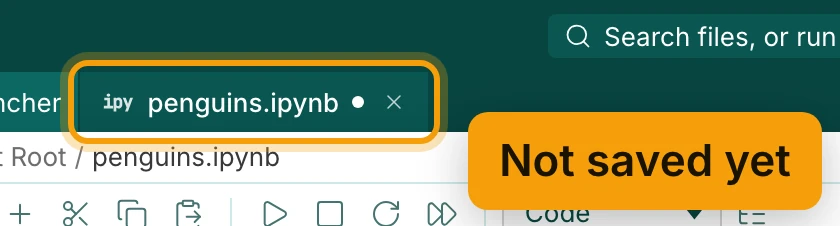
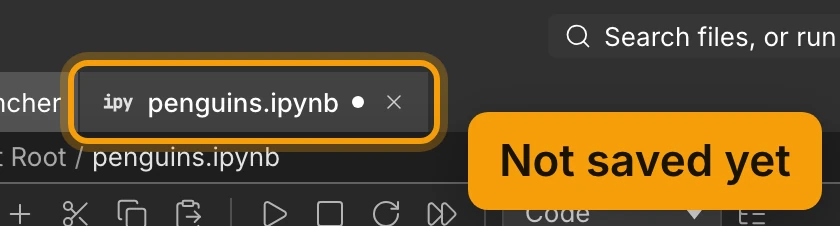
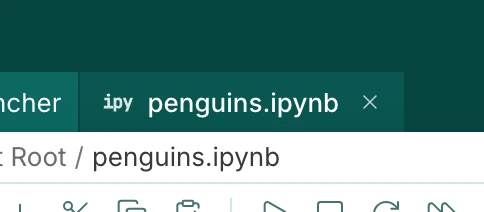
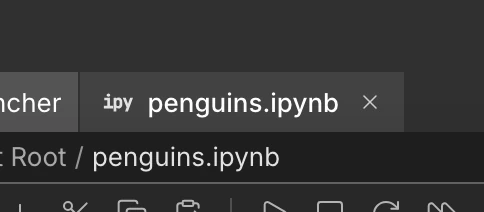
What gets written is the cells, the output they produced, and the name of the kernel they ran on. That last part is why opening the notebook tomorrow does not ask which kernel to use again: it already knows the answer, and only asks when the kernel it names is not installed here.
Tabs, including this one, are remembered between sessions. Files and Tabs
covers what reopens and what does not. Every chord Zasper listens for, including the ones this page
skipped, is on Key Bindings, and the Help tab (F1) lists them inside the
app with a filter.
Next: Track Changes with Git.
