Track Changes with Git
This page walks through the source control panel, from seeing what changed in a notebook to committing it and pushing it. It assumes the folder Zasper opened is a git repository; if it is not, the panel offers to make one.
Open The Panel
The branch icon in the rail on the left opens source control. So does pressing the branch name in the status bar, which is the one place the branch is visible whatever tab is in front.
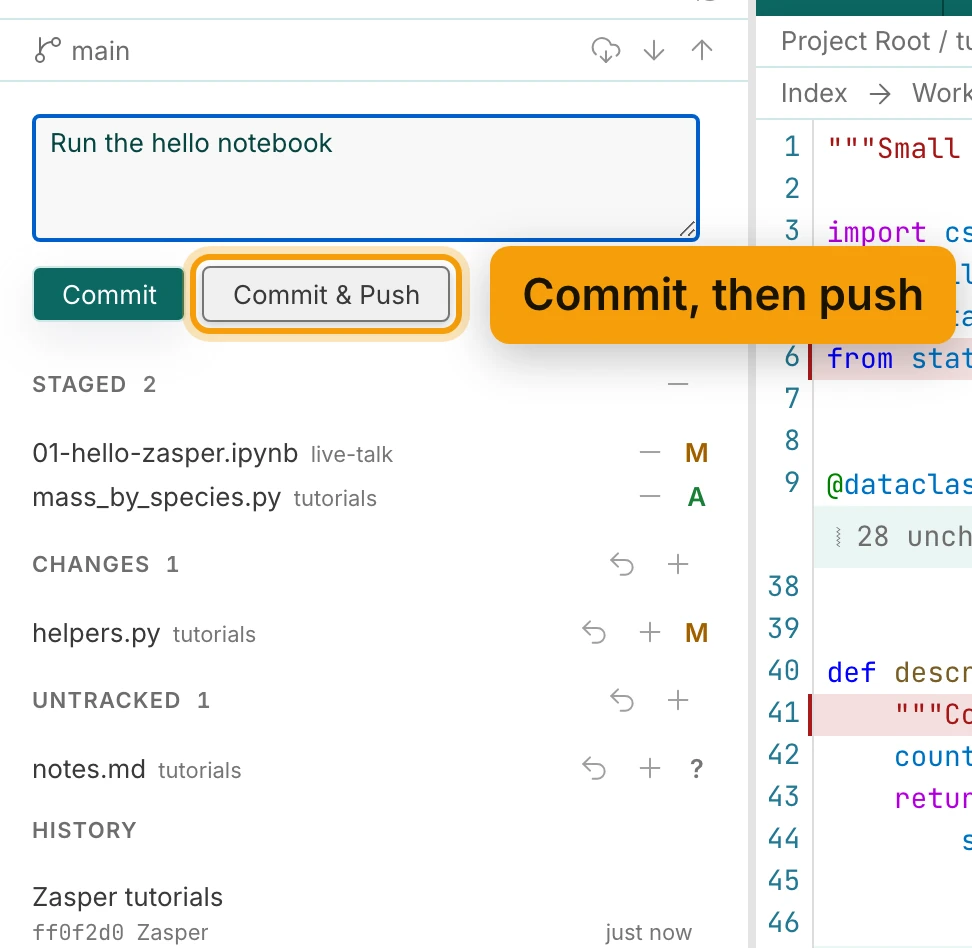
The panel is the branch, with its three sync buttons when there is a remote, then a message box, then the file lists. Staged is what your next commit will contain, Changes is what git knows about but has not been told to include, Untracked is what it has never seen, and History is what is already in. Each heading but History counts what is under it, and a list with nothing in it is not drawn at all, so a clean repository is a panel with a message box and a history.
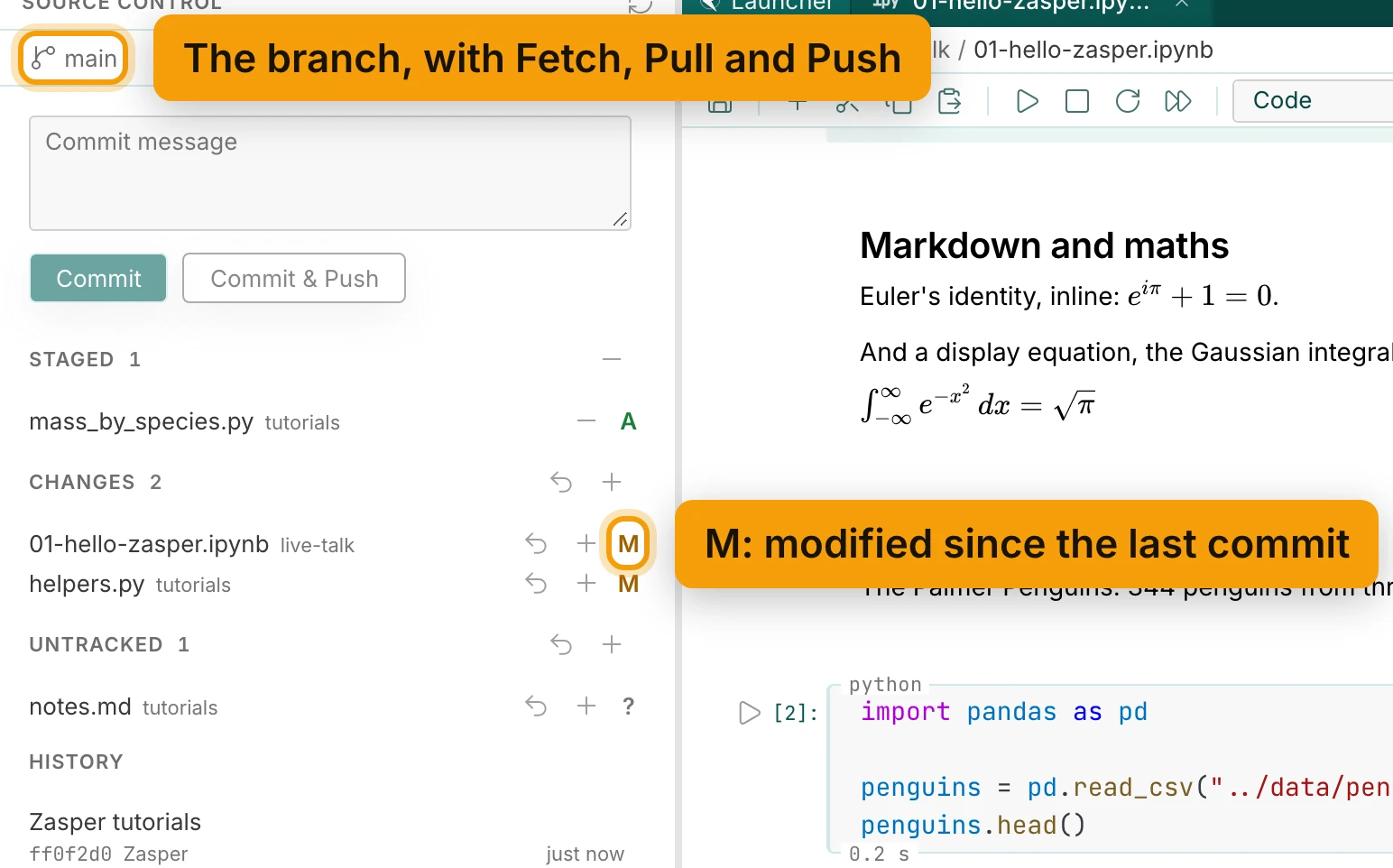
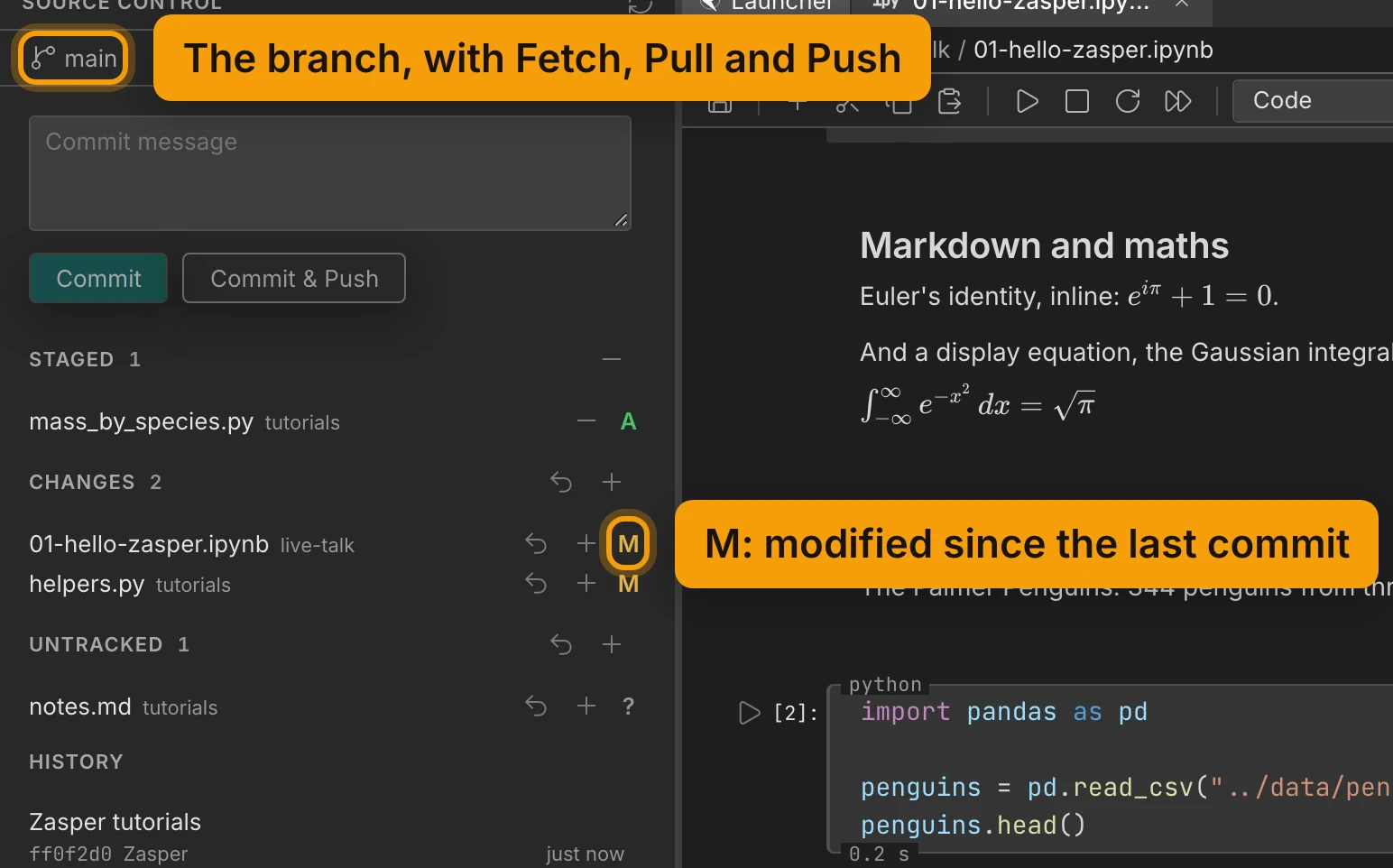
The letter at the end of a row is git’s own, spelt out in the row’s tooltip: M modified, A added,
D deleted, R renamed, C copied, U conflicted, and ? for a file git has never seen. A file
you staged and then edited again appears in both lists, with a different letter in each. The staged row is
what the commit will record, and the other is the edit it will leave behind.
Read What Changed
Press a row. The file opens as a diff tab: what git has for it on the left, which is the last commit unless you have staged part of it, and what is on disk now on the right, with added and removed lines marked by a tinted background. The strip above names the two sides, here Index and Working tree, and the lines that did not change are folded away.
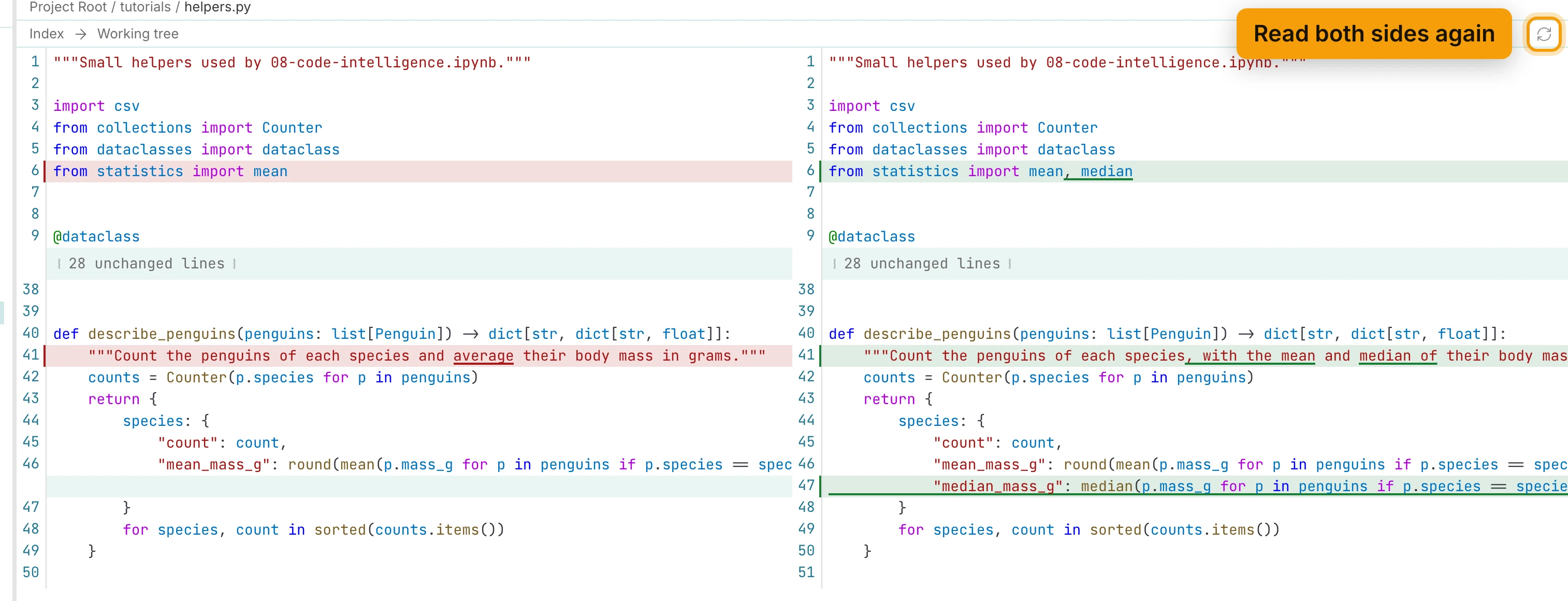
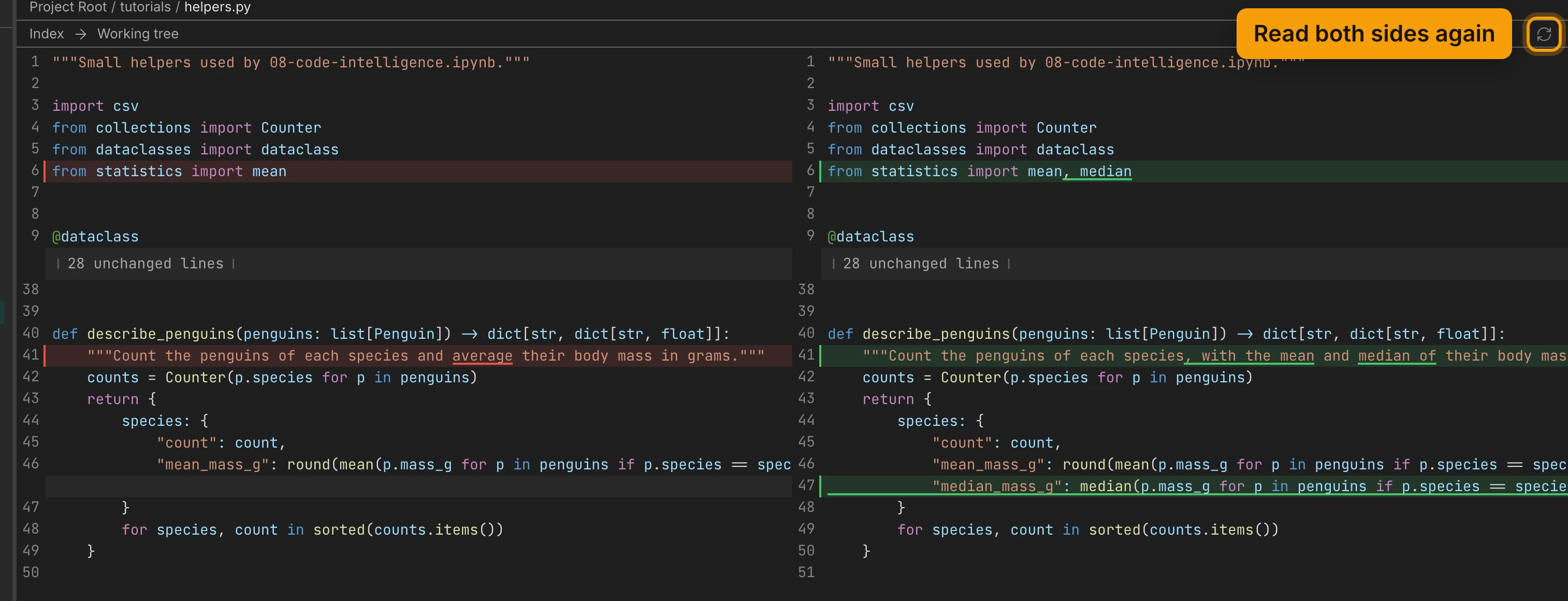
A row under Staged opens the same view with HEAD on the left and Index on the right, so you can check what a commit is about to contain rather than what the file currently says. Diffs are tabs like any other. Leave one open while you keep editing, and press the refresh in its header to catch up.
A notebook is compared cell by cell rather than as JSON; see Comparing Notebooks.
Stage And Commit
Each row carries the actions that make sense where it is: a row under Changes or Untracked can
be staged or discarded, and a row under Staged can be unstaged. The heading above them carries the
same actions for everything in that list at once, and Stage All Changes is in the command palette
(⇧⌘P / Ctrl+Shift+P, under Git).
A merge conflict gets a list of its own at the top, and the action offered there is Stage, because staging a conflicted file is how git is told it has been resolved.
Discard is the one that cannot be undone, so it asks first, once. For a file git has never seen, that question also says the file will be deleted, since git has no version of it to put back.
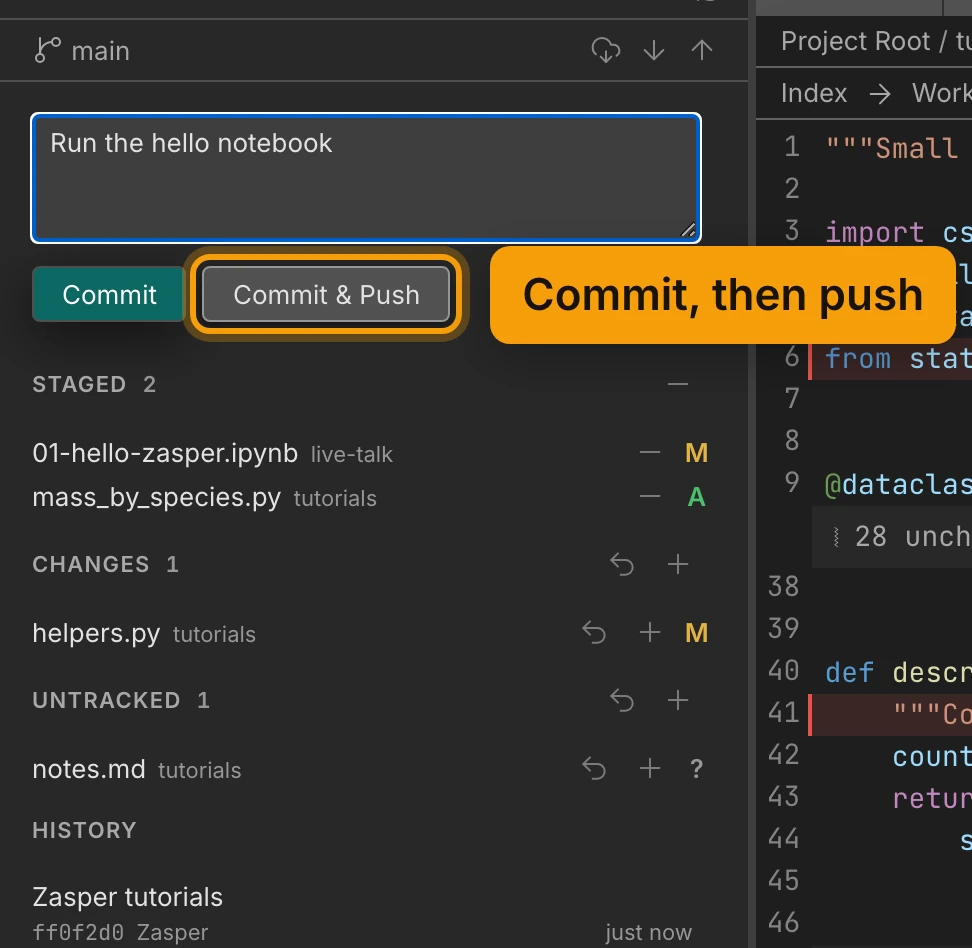
Write a message in the box above the lists and press Commit. With a remote configured there is a second button, Commit & Push, which does both in one go.
While a commit, a stage or a pull is running, the panel’s buttons and the Git commands in the palette are disabled, because git allows one write to the index at a time.
Fetch, Pull, Push
The three buttons beside the branch name are Fetch (ask the remote what it has, change nothing), Pull (bring the tracking branch down) and Push (send yours up). Each is also a command in the palette. They show only when the repository has a remote.
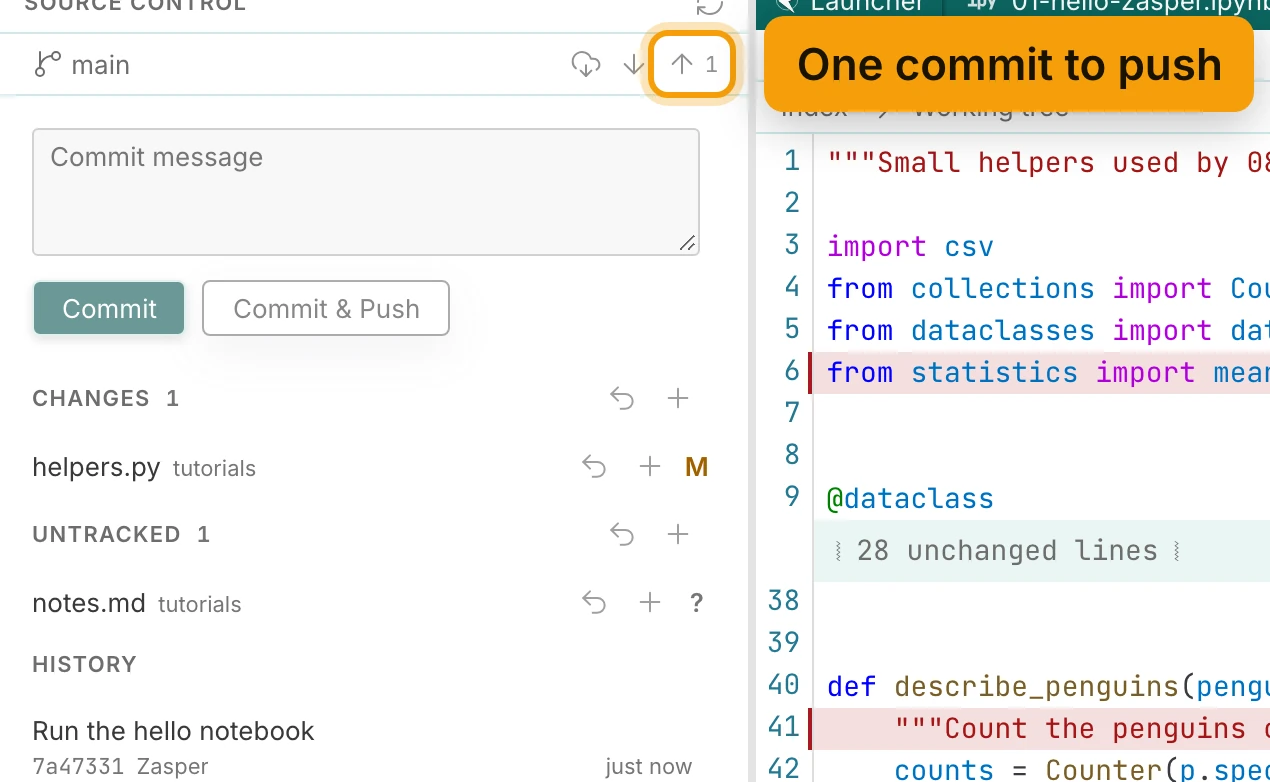
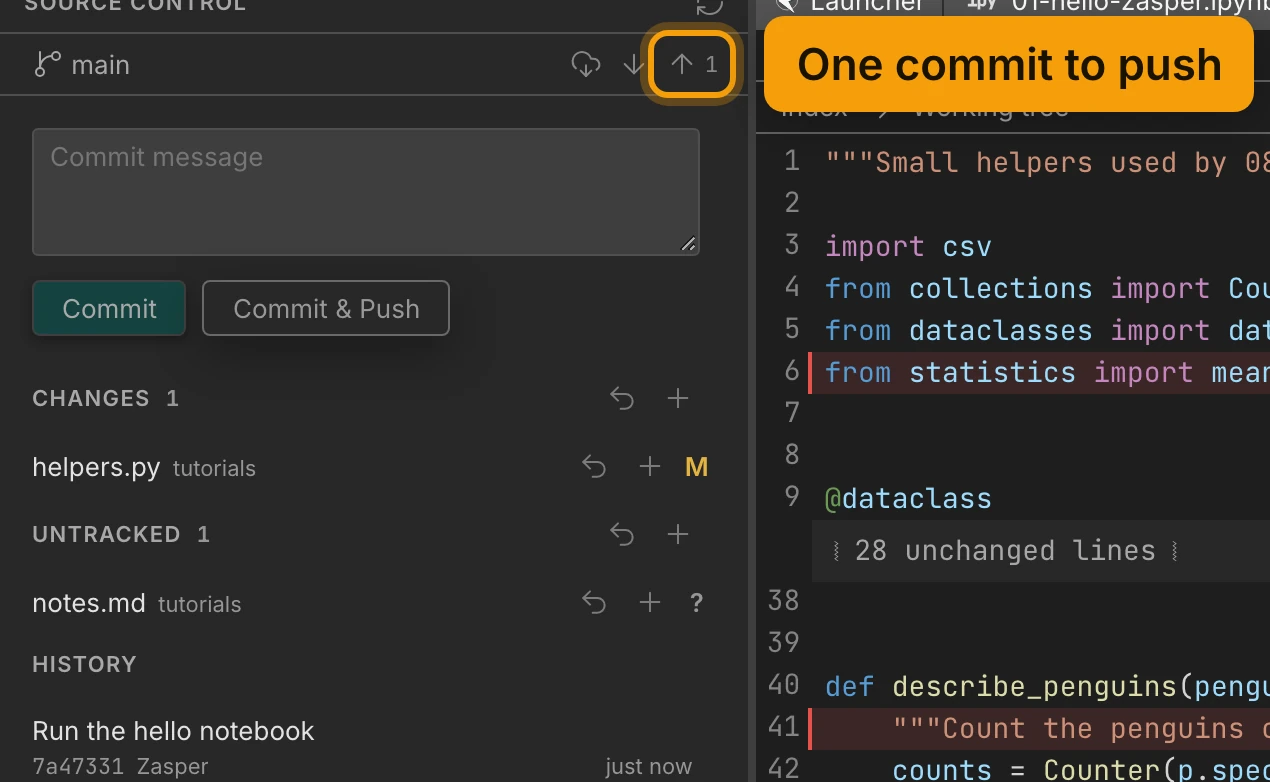
When there is something to move, the arrows carry a count. The number beside Push is how many commits a push would send, and the one beside Pull how many a pull would bring.
To move between branches, press the branch name in the panel. The menu it opens has one field, Find or create a branch, which filters the list as you type and offers to create the branch when what you have typed is not one of them. Checkout Branch… in the palette opens the same menu.
What To Commit In A Notebook
A notebook is JSON, and every run rewrites parts of it that are not your work: execution counts, and whatever the kernel printed. That is fine for a notebook you are keeping as a record and noisy for one you are keeping as code.
Clear All Outputs before a commit, from the palette, is the quickest answer when you want the second kind. Notebook Support has what Zasper writes into the file, and Your First Notebook covers the rest of the notebook itself.
Next: Work in a Terminal.
