Keep a Run Going When You Close the Browser
In this tutorial you start a cell that runs for a minute and close its tab halfway through. Then you open it again and find every line it printed. Last, you let a run finish with no tab open at all, and find its output in the notebook file.
The notebook is live-talk/04-live-output.ipynb from
zasper-tutorials. The repository’s README sets up its
kernel, Python (zasper-tutorials). You add one cell to the notebook. This page assumes Zasper is
installed and open on that folder. Any notebook on any kernel works the same way.
Start A Long Run
Open live-talk/04-live-output.ipynb from the file explorer. Under Output as it happens is a
countdown cell. Add a code cell below it, and type:
import time
for i in range(1, 61):
    print(f"Step {i} of 60", flush=True)
    time.sleep(1)
It prints a line a second for a minute. flush=True sends each line out as soon as it is printed.
Save the notebook first, then run the cell:
| Action | macOS | Windows / Linux |
|---|---|---|
| Save Notebook | ⌘S |
Ctrl+S |
| Run Cell and Select Next | ⇧⏎ |
Shift+Enter |
The save matters for the last chapter. Zasper can write a run’s output only into a cell the file already has, and the new cell is not in the file until you save.
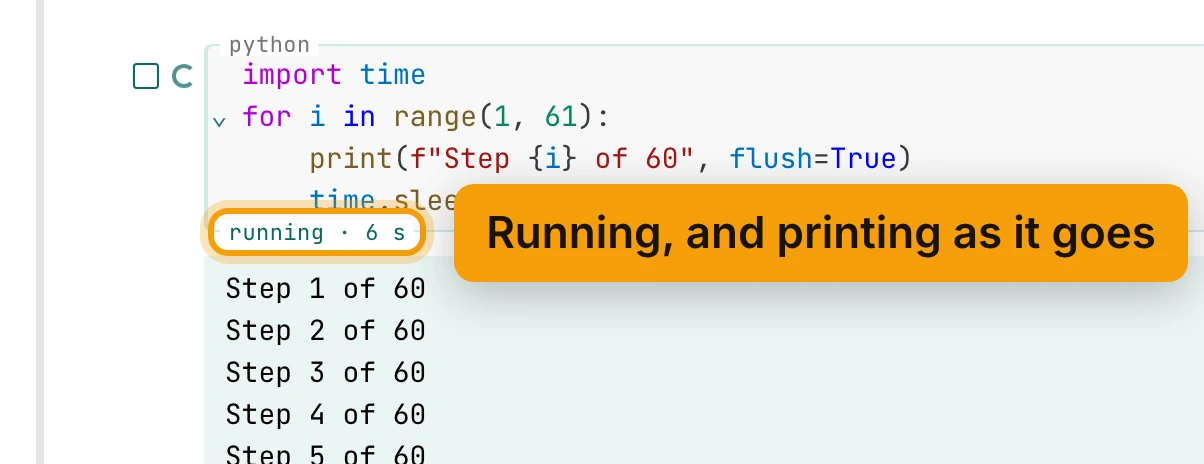
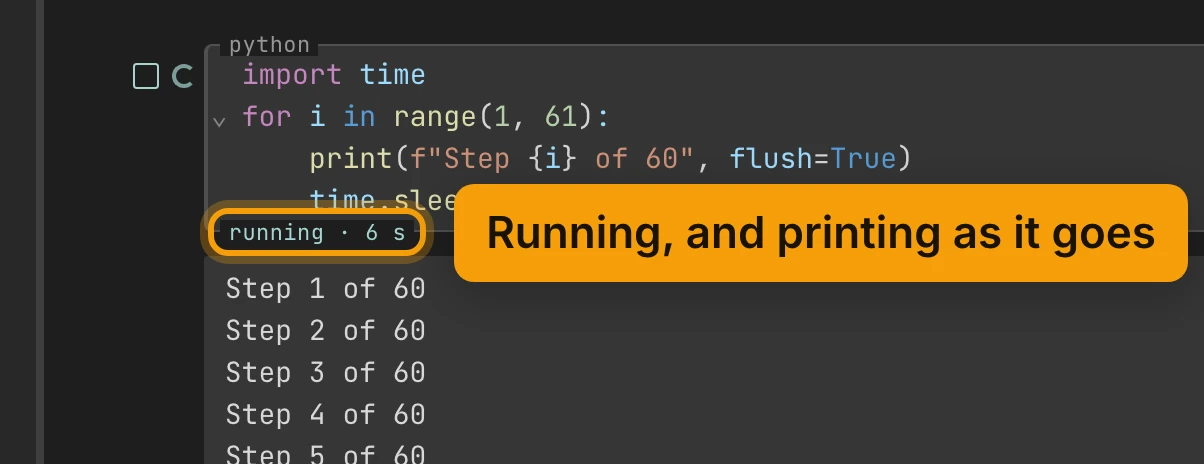
The lines appear under the cell as they are printed. On the cell’s border, running counts the
seconds.
Close The Tab While It Prints
In JupyterLab, the browser turns what the kernel sends into outputs, and the server keeps none of it. Close the tab now, and everything the cell prints from here on is lost. The kernel keeps running, but nothing is left to show you.
In Zasper, the server keeps it. Close the notebook’s tab with the × on the tab while the cell is still printing. The new lines are changes you haven’t saved, so Zasper asks Do you want to save the changes you made to 04-live-output.ipynb? Press Save. The tab closes. The kernel does not stop.
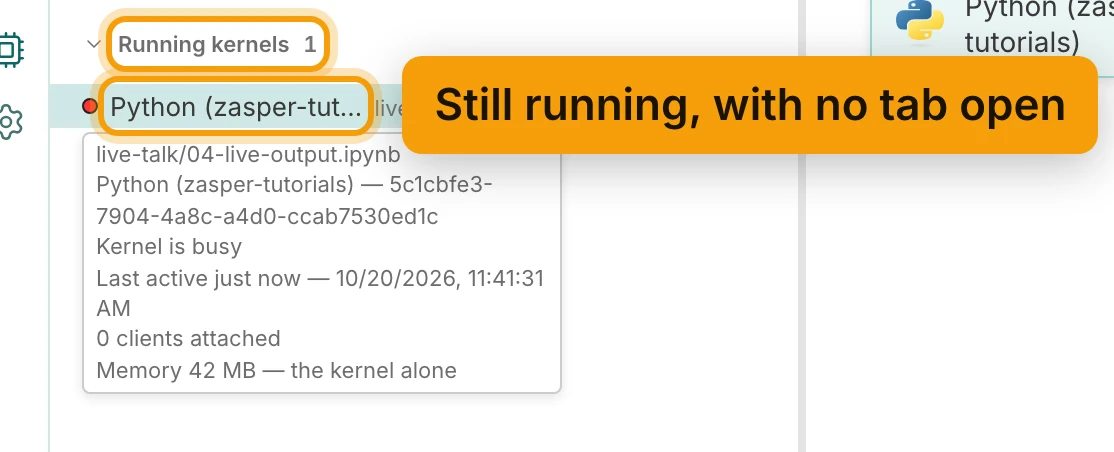
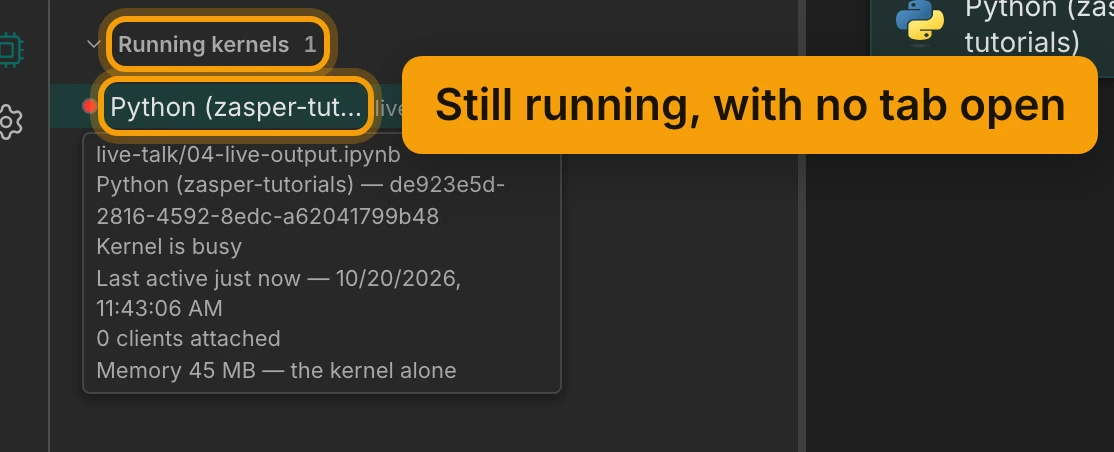
To see it, open Jupyter info in the rail on the left. Under Running kernels, the notebook’s kernel is still listed. Rest the pointer on it. The tooltip says Kernel is busy and 0 clients attached: no tab is watching it, and it keeps going.
Clicking the kernel’s row is also a way back: it opens the notebook the kernel belongs to.
Open It Again And Catch Up
Go back to the file explorer and click 04-live-output.ipynb again. Every line the cell printed while
the tab was closed is there. The cell still says running, and new lines keep arriving, live.
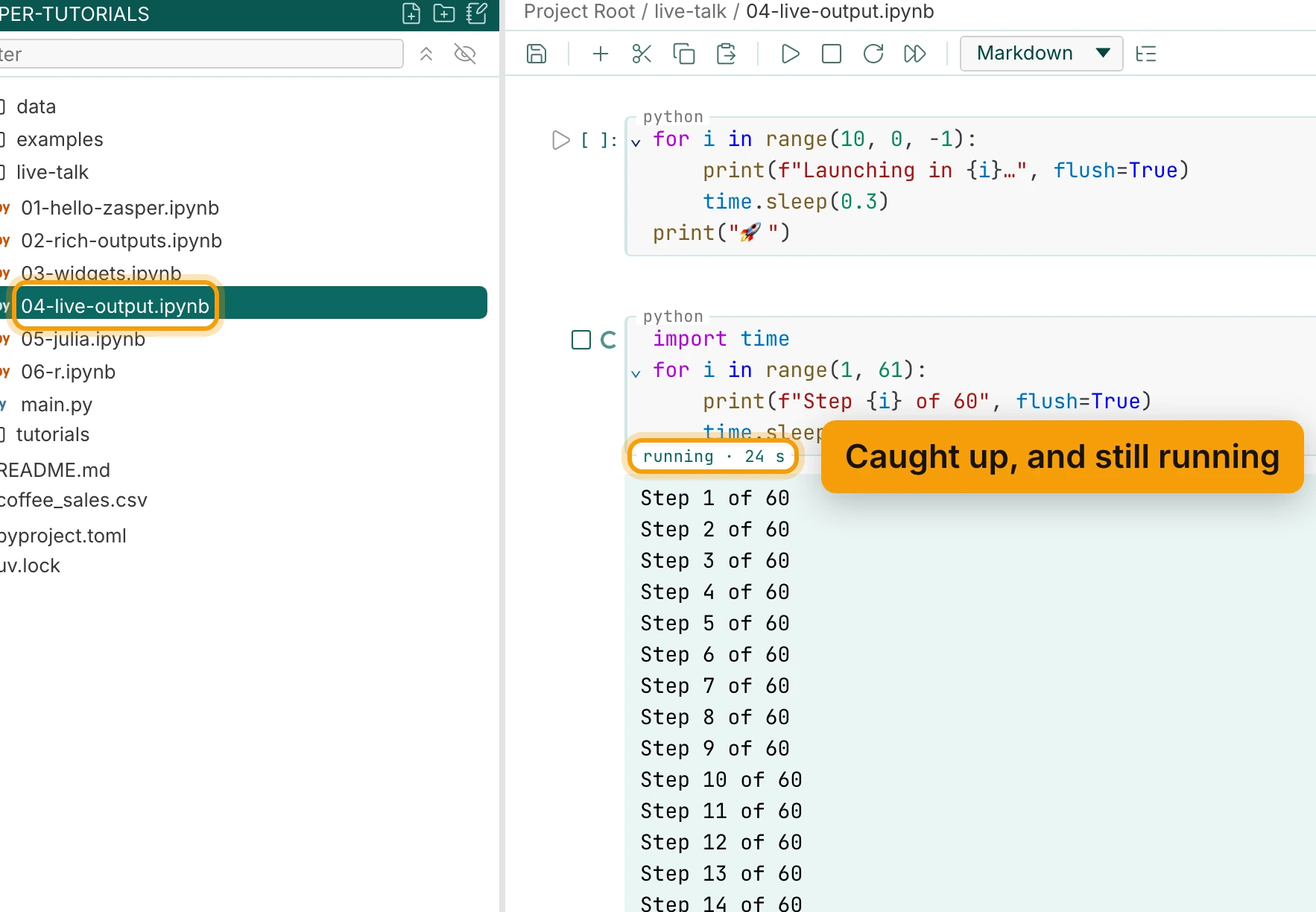
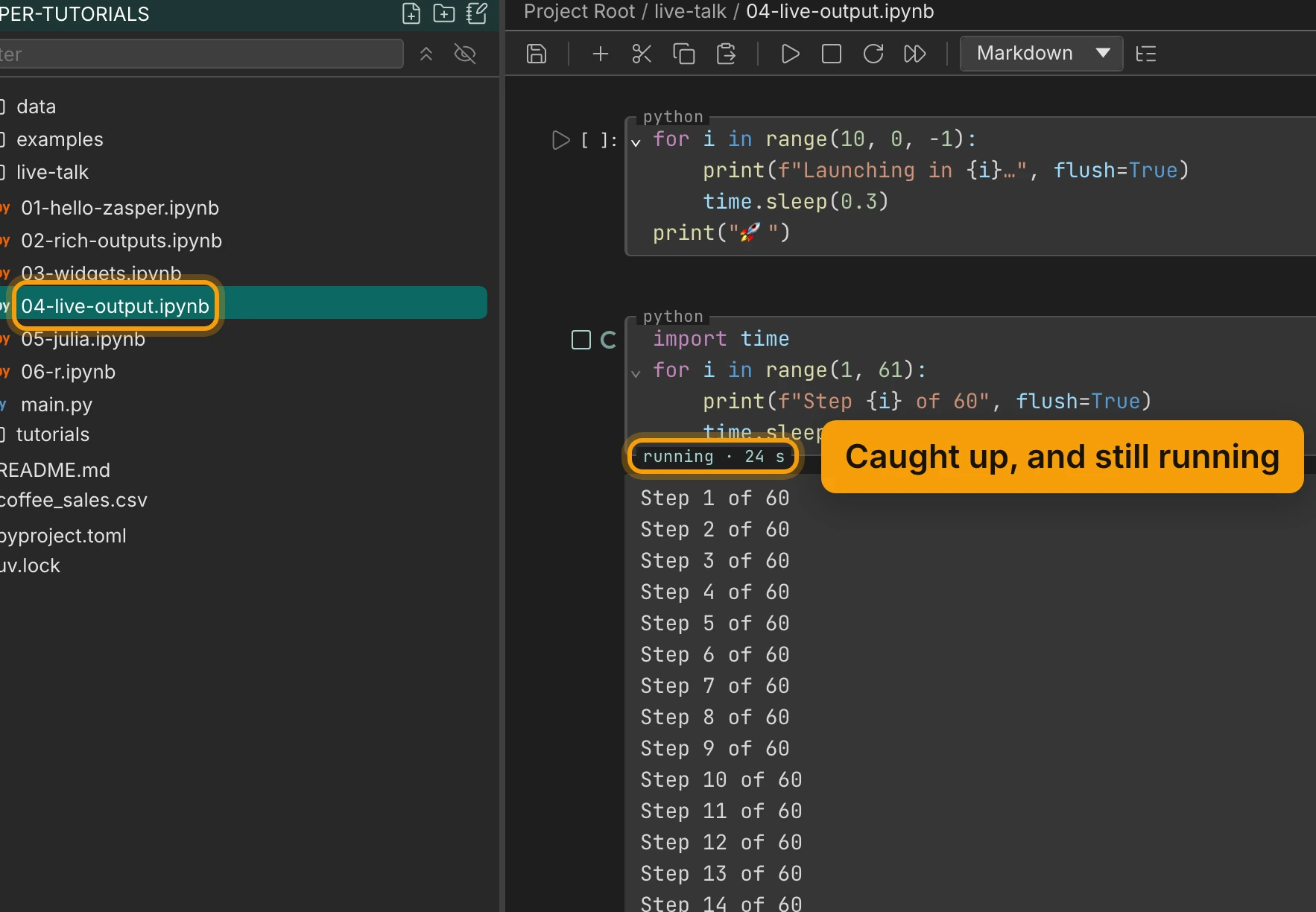
When a tab connects to a kernel, the server first gives it every run that is still going, with all of its output so far. Then it passes on each new line as the kernel prints it. A tab that loses its connection mid-run, on a dropped Wi-Fi connection say, does the same by itself. It reconnects, is given what it missed, and follows the rest of the run.
What keeps the run going is the server, not the tab. If Zasper runs on your laptop, closing the lid puts the server to sleep, and the run pauses too. For a run that goes on while the laptop is shut, run Zasper on another machine; Deploying on Cloud covers that.
Let A Run Finish With No Tab Open
Close the tab again while the cell is still printing, and press Save when asked. This time, wait for the minute to be up before you come back.
A run that ends while no tab has its notebook open is written into the .ipynb: the cell’s outputs,
its execution count and its run times. Nothing else in the file changes. Whatever reads the file next sees the whole
run: Zasper, JupyterLab, git diff, or a script of your own.
To check, open a terminal from Terminal in the status bar, and search the file for the last line:
grep "Step 60" live-talk/04-live-output.ipynb


The tab you closed saved only the lines printed up to that moment. Step 60 of 60 is in the file
because the server wrote it when the run ended.
Notebook Support has the rest: how much output a
run keeps, runs started in a second tab or by an agent, and an input() asked while no tab is open.
Recap
- Start a long run
- Closing the tab leaves the kernel running
- Reopen it, and the output catches up, then streams live
- A run that ends with no tab open is written into the file
Next: Notebook Support for reference, then Watch Kernel Memory.
