Get Completions and Hovers in a Notebook
A language server reads your code as you type. It completes names, explains them, and marks mistakes
before you run anything. This tutorial uses it on tutorials/08-code-intelligence.ipynb, a short
notebook about the Palmer penguins, and then on tutorials/helpers.py, the file the notebook imports.
Both are in zasper-tutorials on GitHub.
The page assumes Zasper is installed and open on that folder, with its Python (zasper-tutorials) kernel set up as its README says. The folder’s environment includes basedpyright, the language server used here.
See Which Language Server Is Running
Zasper uses the language server you already have. It ships none of its own. For Python, it looks for basedpyright, pyright or pylsp, and starts the first one it finds.
Open the notebook. The item at the right of the status bar names the server for the notebook in front. The dot beside the name shows its state: starting, ready, failed or stopped. Here it says basedpyright, with a green dot.


Press the item for its menu. It names the Python the server reads imports with, which is the notebook’s kernel. Restart, Show log and Stop are there too. If no server is installed, the item says No server, and the menu gives the command that installs one.
Complete Names As You Type
Run the import cell, the fourth cell, with Shift+Enter. Then click into the empty cell under
Now type load_ and type load_.
A list opens as you type. While you type, it comes from the language server alone, which reads the notebook’s source. Press Escape to close it, then Tab.
Tab asks the running kernel too, and so does typing a dot. The two lists are merged, and each row
says where it came from: kernel for a name the kernel holds now, source for one that only the
code defines. load_penguins is tagged kernel, because the import cell has run. %load_ext is an
IPython magic, which only the kernel knows.
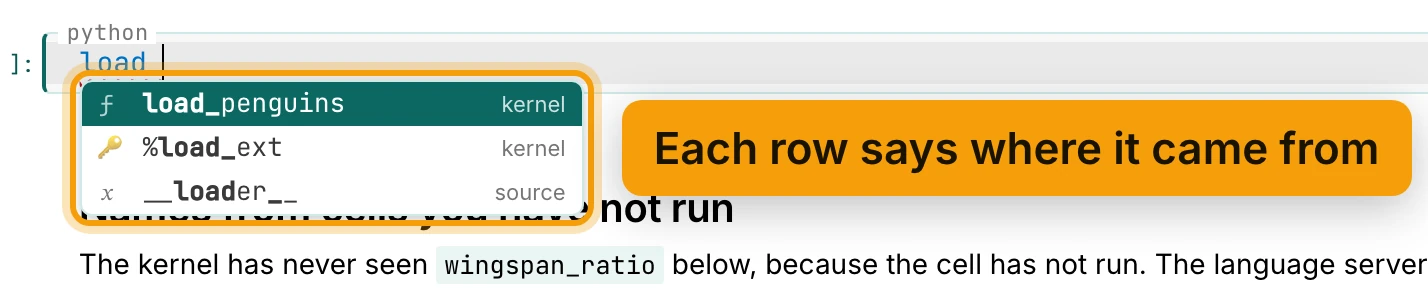
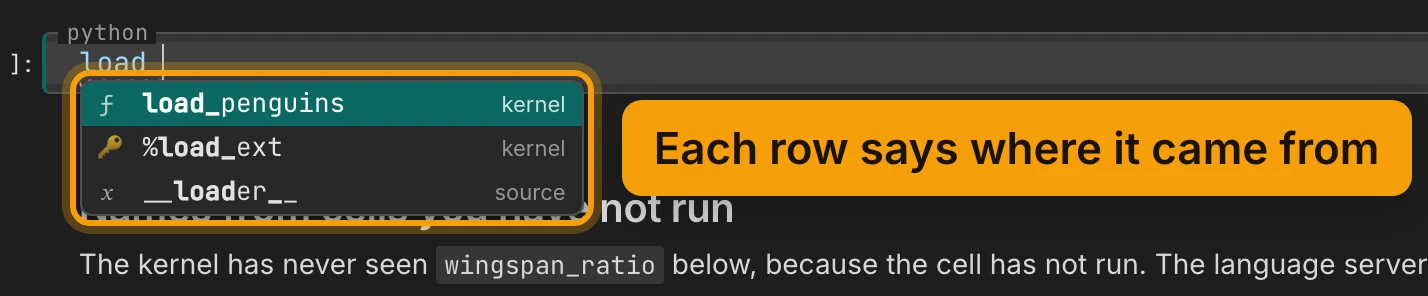
kernel or source.Press Enter to take the highlighted row.
| Action | macOS | Windows / Linux |
|---|---|---|
| Run Cell and Select Next | ⇧⏎ |
Shift+Enter |
| Complete, asking the kernel too | Tab |
Tab |
| The kernel’s documentation for a name | ⇧Tab |
Shift+Tab |
Read A Hover, And Fix The Underlines
Run the cell under Documentation. Then rest the pointer on describe_penguins. A card opens with the
function’s signature and its docstring. It comes from the language server, which read them in
helpers.py.
![The cell that calls describe_penguins, with a card open above it: (function) def describe_penguins(penguins: list[Penguin]) returning dict[str, dict[str, float]], then Count the penguins of each species and average their body mass in grams. The name is ringed and labelled Hover for the signature and docstring.](/static/images/tutorials/completions-and-hovers/hover.light.webp)
![The cell that calls describe_penguins, with a card open above it: (function) def describe_penguins(penguins: list[Penguin]) returning dict[str, dict[str, float]], then Count the penguins of each species and average their body mass in grams. The name is ringed and labelled Hover for the signature and docstring.](/static/images/tutorials/completions-and-hovers/hover.dark.webp)
With the cursor in a name, Shift+Tab asks the kernel instead, as Jupyter does. Its card shows the object as it is right now.
Now add a code cell below it and type a name with a letter missing: describe_penguin(penguins). A red
squiggle appears under it straight away, before you run anything. Hover the squiggle to read the
problem: "describe_penguin" is not defined.
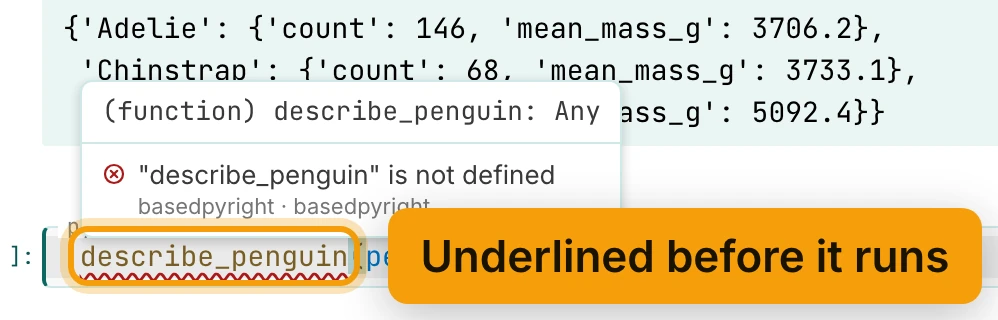
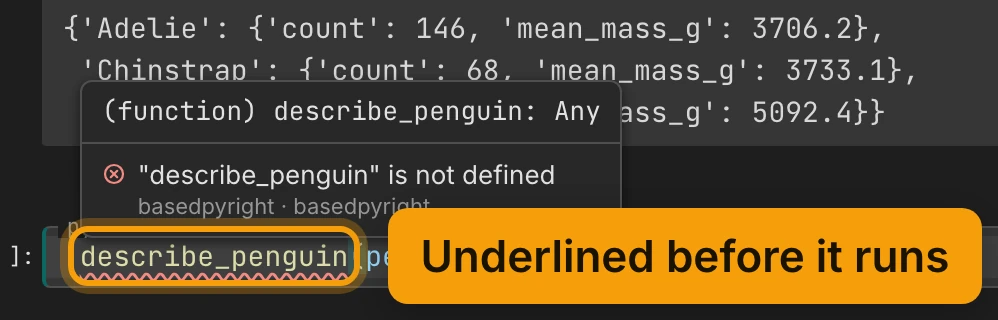
Fix the name, and the squiggle goes. Each problem is also a row in the Problems panel under the editor, and a count in the status bar.
By default, type checking is off. It still reports undefined names and imports that can’t be found.
The cell under Problems has two other mistakes: a misspelled attribute, and a string passed where a
number is expected. To see those, set Type checking to basic under Settings → Language
servers. Language Servers explains the modes.
Use A Name From A Cell You Haven’t Run
The language server reads the notebook’s cells as one document. So it knows a function from a cell that hasn’t run yet.
The cell under Names from cells you have not run defines wingspan_ratio. Don’t run it. Click into
the empty cell below it, type w and press Tab.
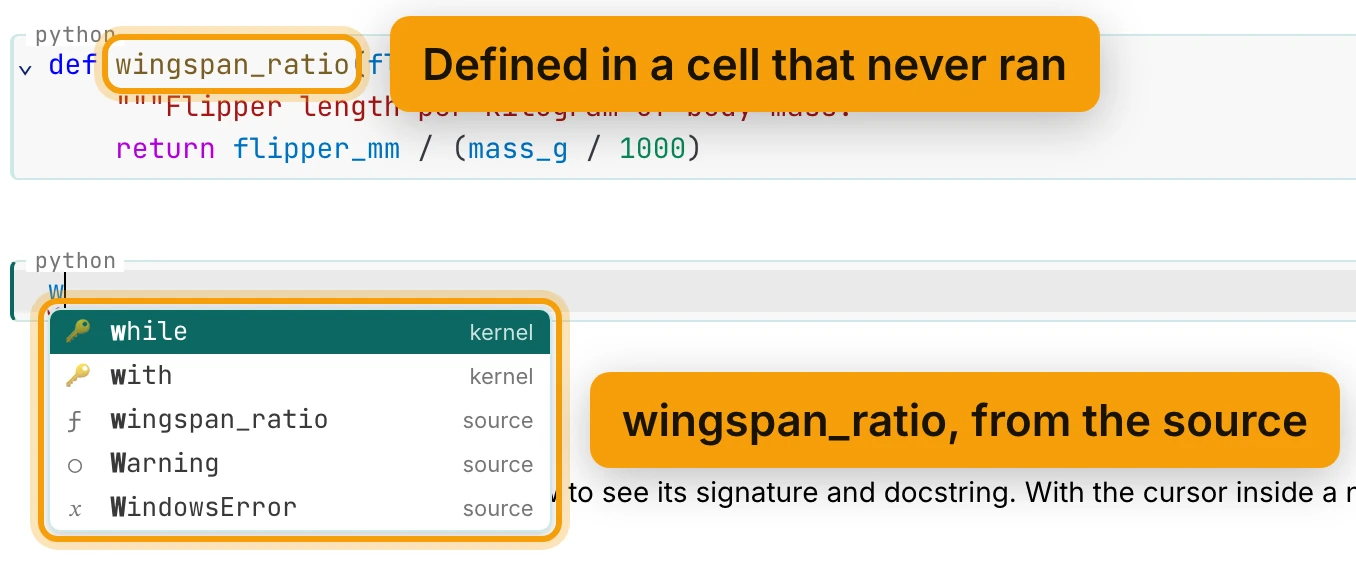
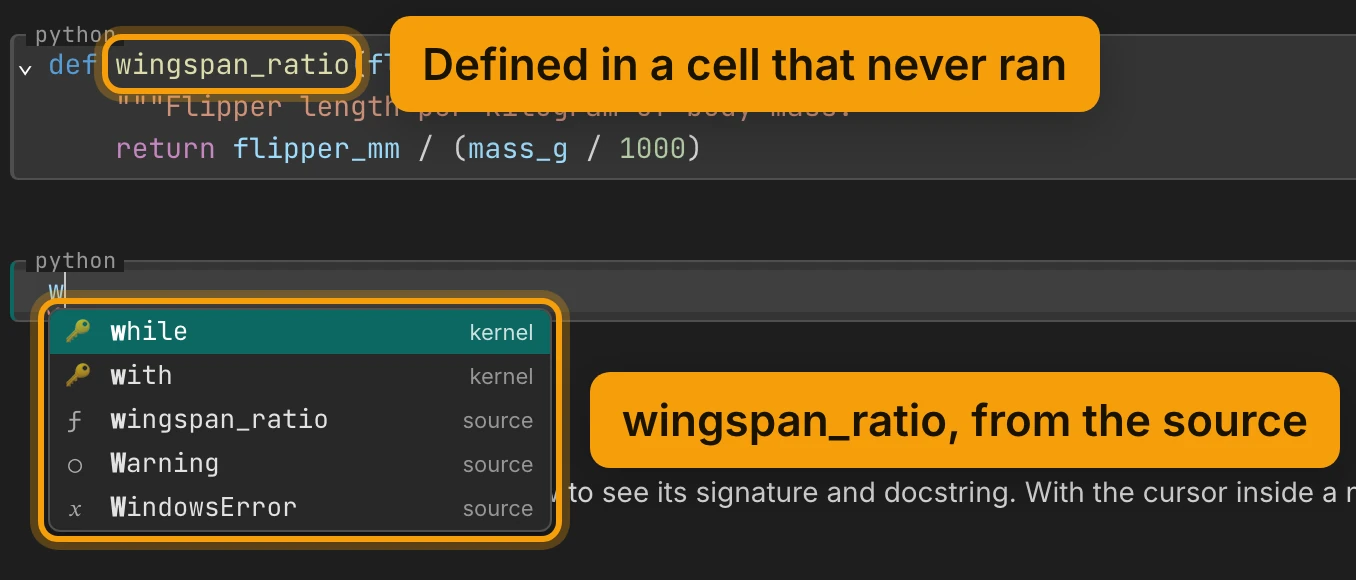
wingspan_ratio is tagged source: the kernel has never seen it.while and with are tagged kernel. wingspan_ratio is tagged source, because only the code
defines it. Calling it now would raise a NameError, because the kernel has never seen it. The tag
tells you so before you run anything.
Jump And Rename In A Python File
Open tutorials/helpers.py from the file explorer. In a Python file, the server gives you more.
| Action | macOS | Windows / Linux |
|---|---|---|
| Go to Definition | F12 |
F12 |
| Find All References | ⇧F12 |
Shift+F12 |
| Rename Symbol | F2 |
F2 |
| Quick Fix | ⌘. |
Ctrl+. |
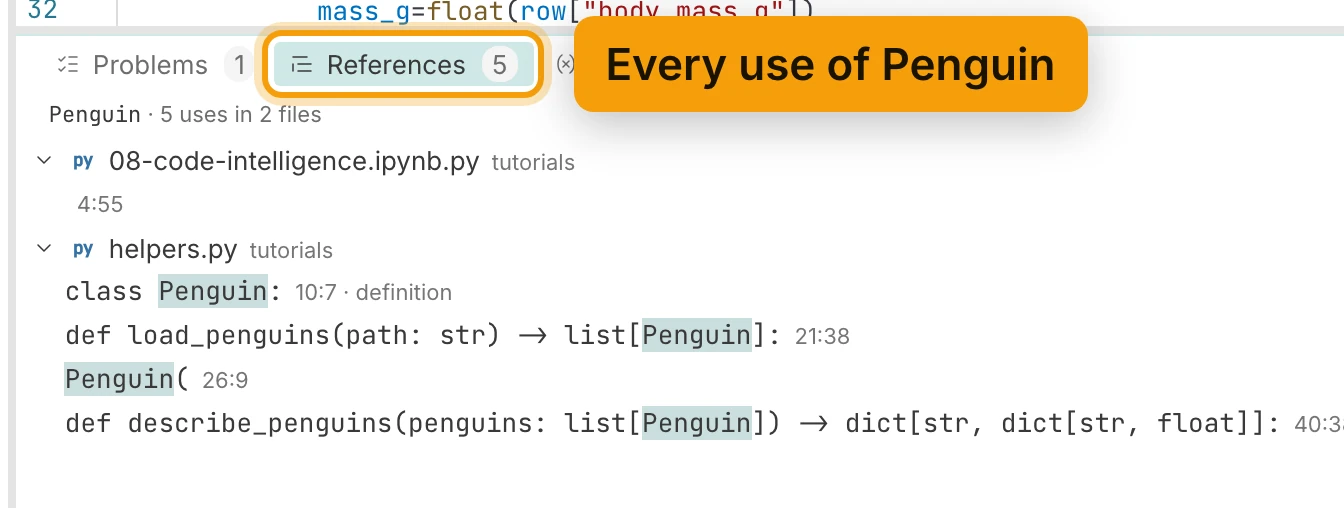
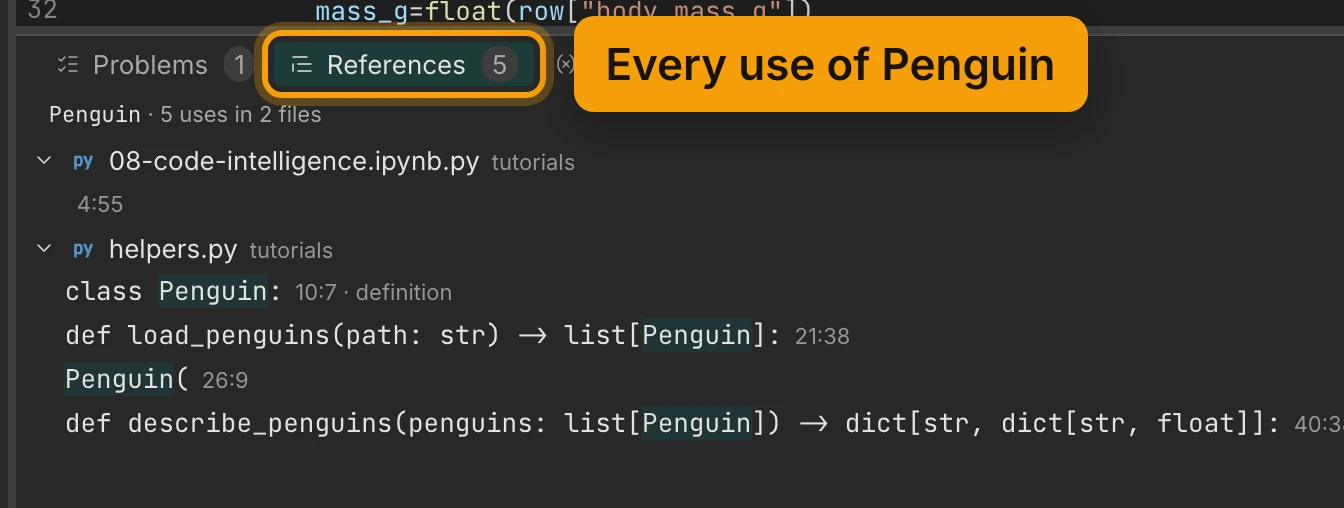
Click Penguin where load_penguins builds one, and press F12. The cursor jumps to
class Penguin. Press Shift+F12 there. The References tab under the editor lists every use of
Penguin, with its line: four in helpers.py, and the import in the notebook.
F2 opens a box over the name. Type the new name and press Enter, and every use in the file changes. Renaming doesn’t reach into a notebook’s cells yet.
The Problems tab lists the problems in the project, and names the cell for a notebook’s.
Now use a name without importing it. Click at the end of the first line, the docstring, press
Enter, and type print(median([1, 2])). median isn’t imported in this file. Put the
cursor in median and press ⌘. (Ctrl+.). A Quick fix menu opens under the line.
![helpers.py with a new second line, print(median([1, 2])), and the cursor in median. Below it, a menu headed Quick fix offers from statistics import median, then a fix that adds a pyright ignore comment. The menu is ringed and labelled The missing import, as a quick fix.](/static/images/tutorials/completions-and-hovers/quickfix.light.webp)
![helpers.py with a new second line, print(median([1, 2])), and the cursor in median. Below it, a menu headed Quick fix offers from statistics import median, then a fix that adds a pyright ignore comment. The menu is ringed and labelled The missing import, as a quick fix.](/static/images/tutorials/completions-and-hovers/quickfix.dark.webp)
Choose from statistics import median. The import is added at the top of the file, under the
docstring.
Recap
- The status bar names the language server
- Completion from the source, and from the kernel
- Hover for docs; problems underlined before you run
- The cells are read as one document
- Definition, references and rename in Python files
Next: Language Servers for reference, then Use R, Julia or Any Kernel.
