Explore a DataFrame and Chart It
In this tutorial you show a pandas DataFrame in a notebook and work with it where it is. You read its columns, sort and filter it, page through a million rows, open it in a tab, and chart it. You write none of that code yourself. At the end, the chart becomes code you keep.
The notebook is tutorials/04-data-analysis.ipynb from
zasper-tutorials. It loads the Palmer penguins with
pandas: 344 penguins of three species, from three islands. The repository’s README sets up its kernel,
Python (zasper-tutorials), which has pandas and plotly in it. This page assumes Zasper is
installed and open on that folder. A DataFrame of your own works the same way, on
any Python kernel.
A DataFrame Is A Grid
Open the notebook and run its first code cell, under Load. It reads data/penguins.csv into
penguins.
Now show the whole table. Add a cell below penguins.head(), and type the name of the DataFrame on a line
of its own:
penguins
Run it:
| Action | macOS | Windows / Linux |
|---|---|---|
| Run Cell and Select Next | ⇧⏎ |
Shift+Enter |
| Run Cell | ⌃⏎ |
Ctrl+Enter |
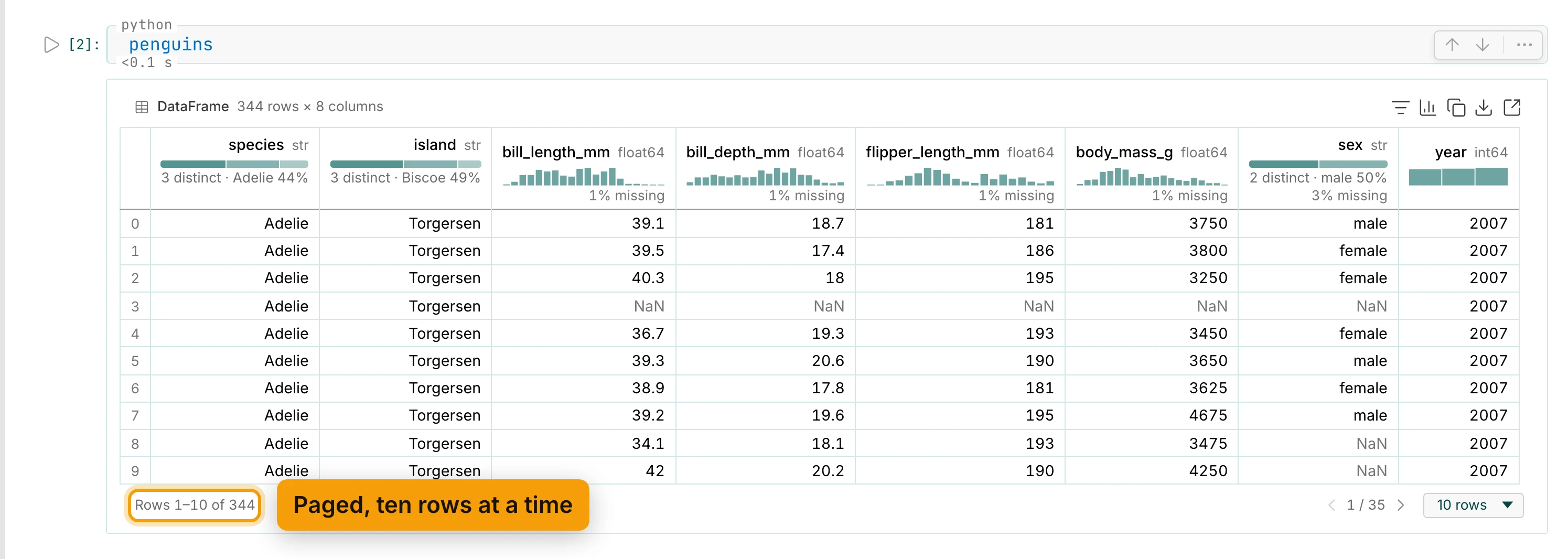
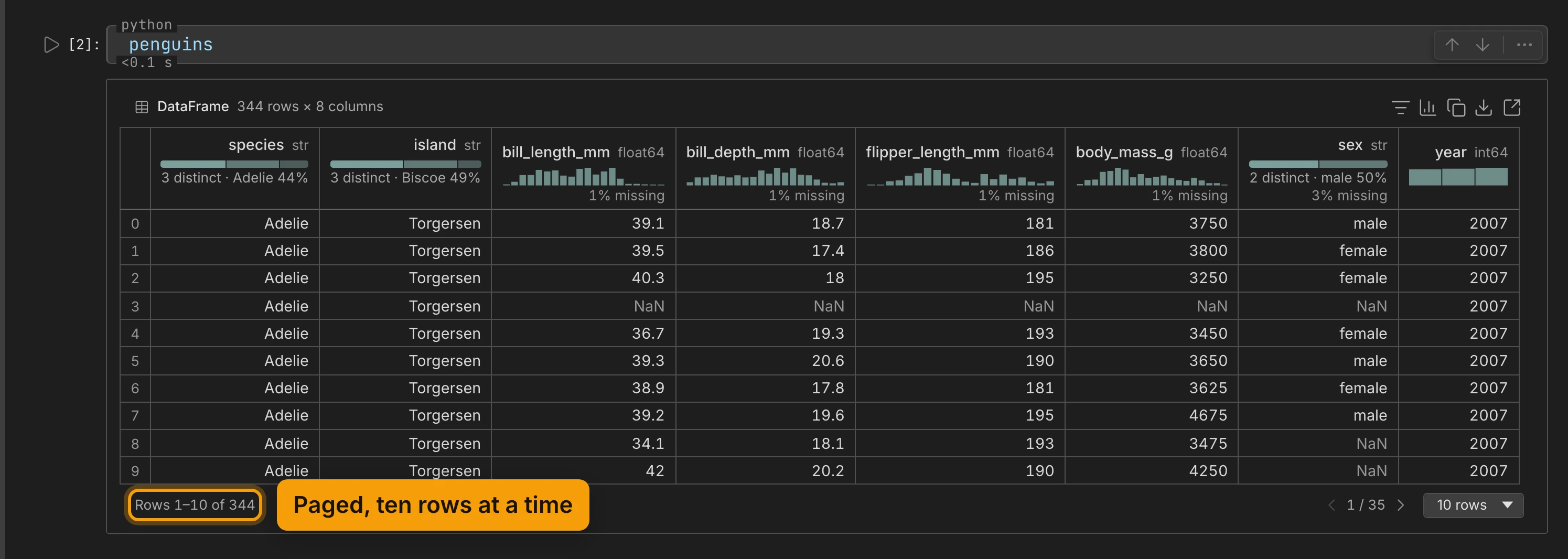
Instead of a long printed table, you get a grid. Its top line says what it is: a DataFrame, with 344 rows × 8 columns.
It shows ten rows at a time. Next page and Previous page, at the bottom, page through them. The drop-down beside them shows 25 or 100 rows at once.
The grid needs the kernel that printed the frame. After a restart, the output is pandas’ own table again; run the cell to get the grid back. The saved notebook keeps pandas’ table, so it reads the same in JupyterLab and on GitHub.
Read A Column At A Glance
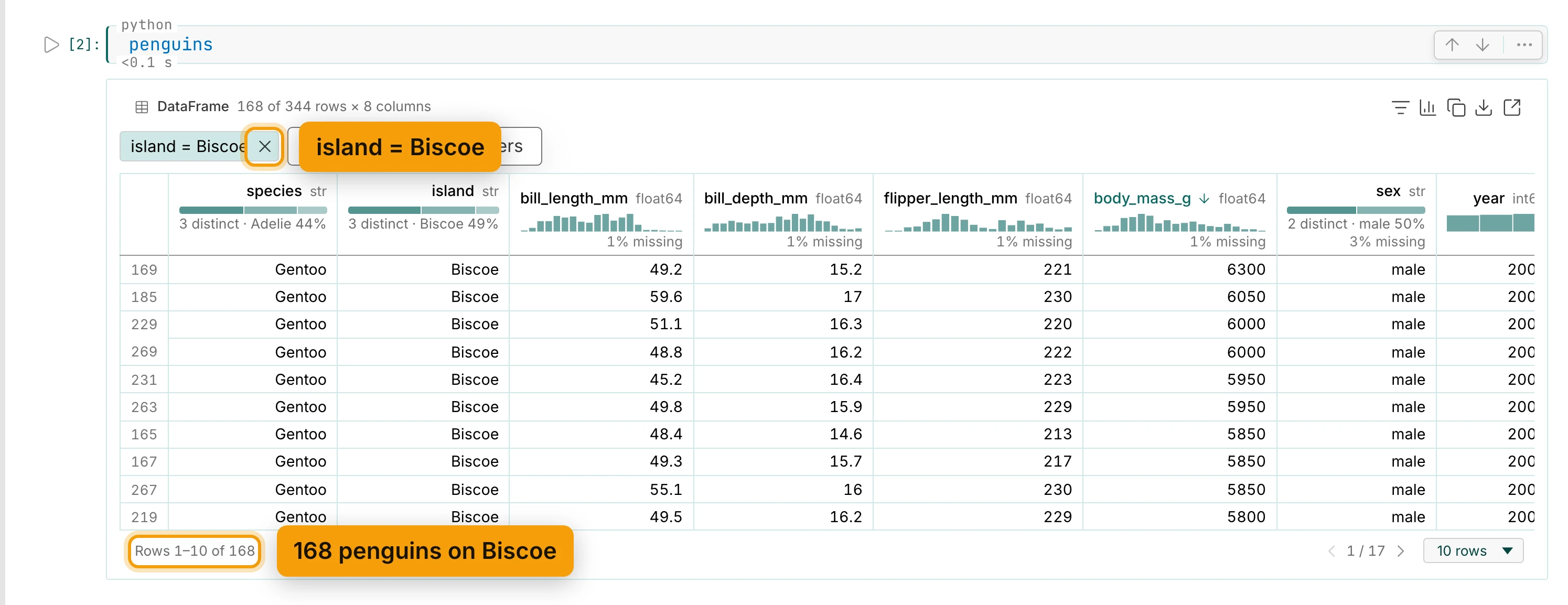
Each column’s header shows its type, a small chart of its values, and how much is missing. You can see
them in the grid above. Body mass has a few gaps: body_mass_g is a float64, and its header says 1%
missing. Hover the small chart for the numbers behind it.
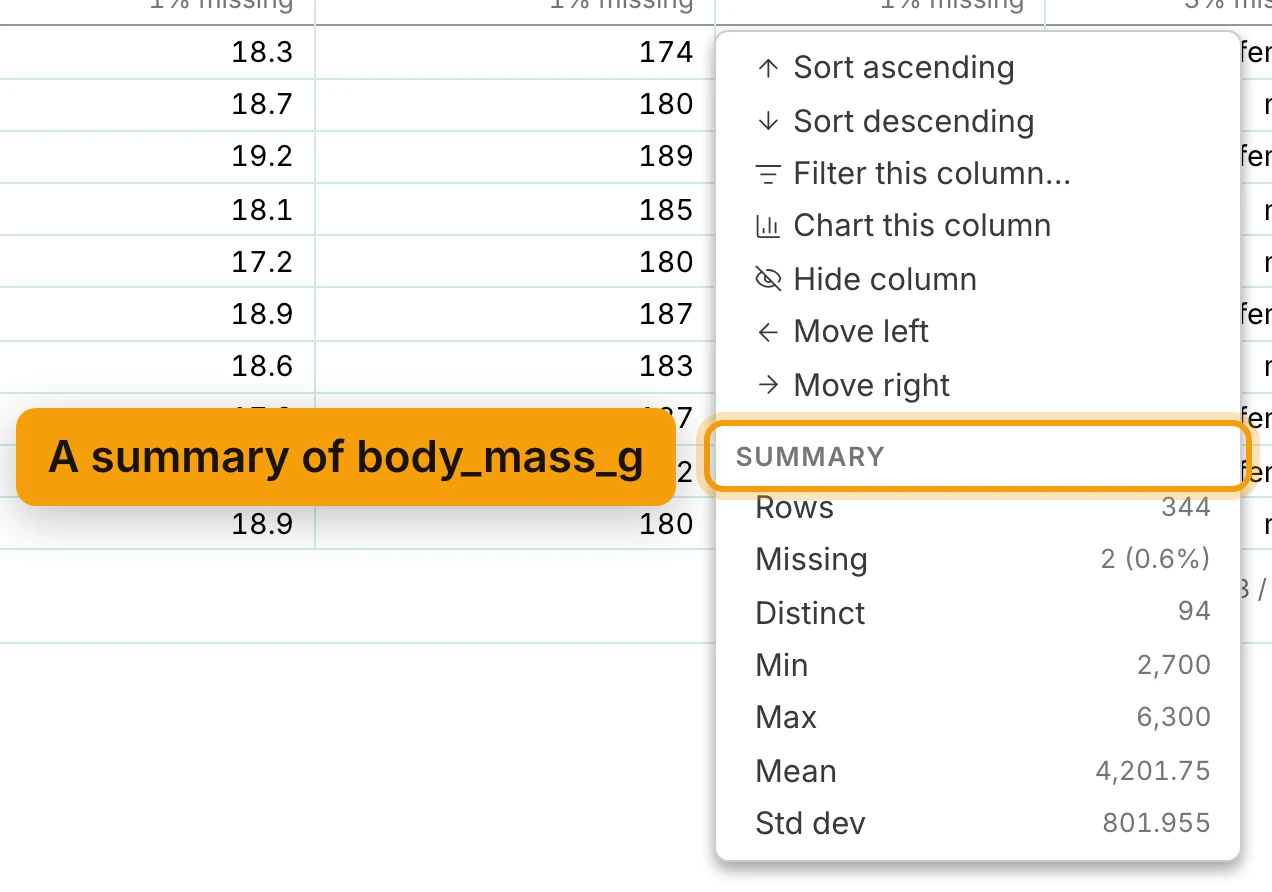
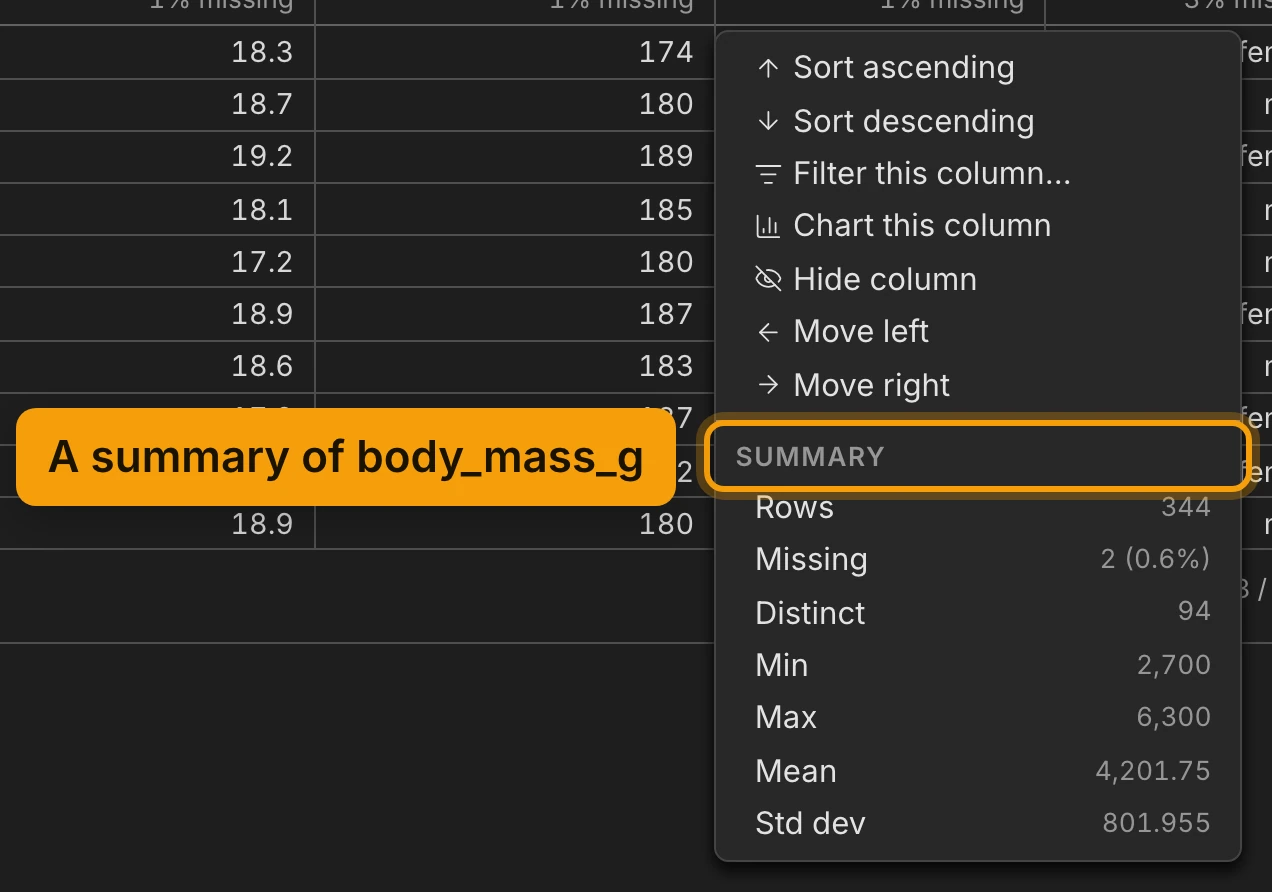
Click a header for its menu. At the top are the actions: sort, filter, chart, hide and move the column.
At the bottom is a Summary of the column: Rows, Missing, Distinct, Min, Max,
Mean and Std dev. For body_mass_g, Missing reads 2 (0.6%): two of the 344 penguins have no
body mass. Min and Max give the range: from 2,700 to 6,300 grams.
A text column, such as species, lists its commonest values instead, under Summary · commonest.
Sort And Filter
In the same menu, choose Sort descending. The heaviest penguins come first. The sorting happens in the kernel, not in your browser.
To keep only some rows, add a filter. Press Filter rows, the funnel in the grid’s bar. Pick a
column, a comparison and a value, and press Apply. Here, the penguins on Biscoe island: island,
=, Biscoe. A text column also offers contains, does not contain and starts with, which
ignore case.
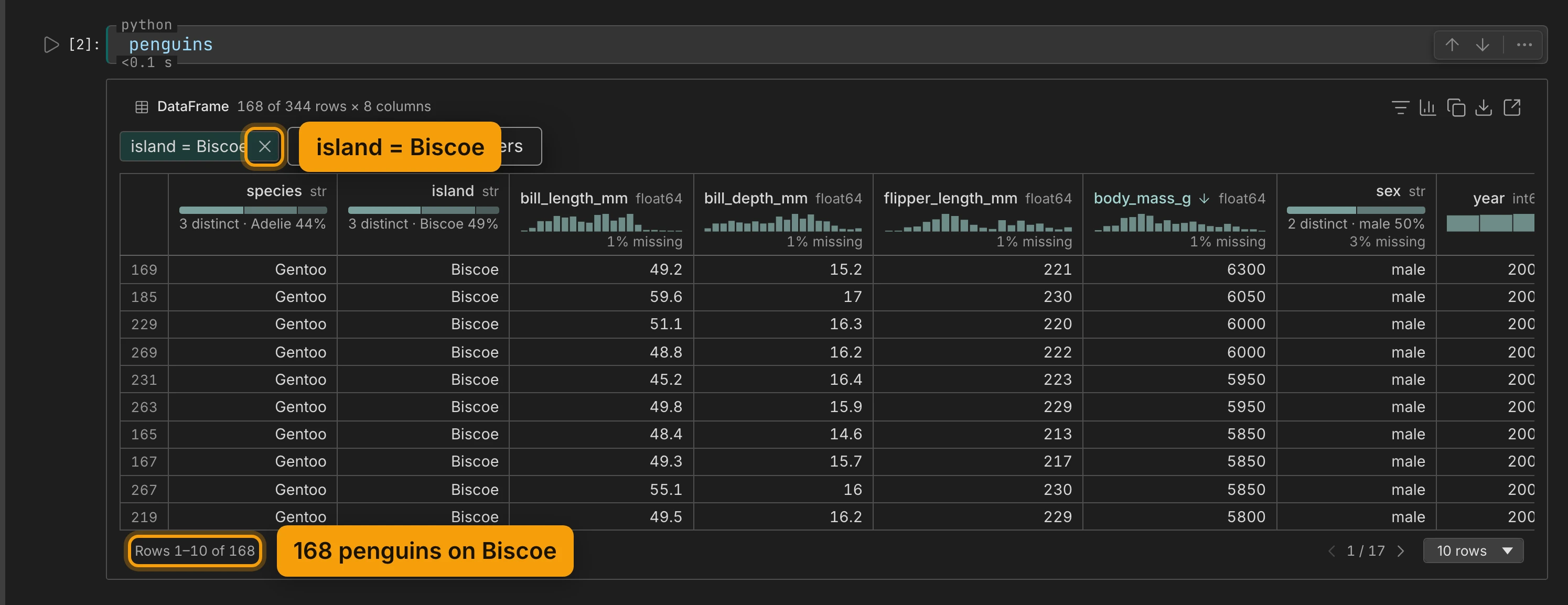
The filter shows above the grid, and the count drops to 168. The sort still holds, so the heaviest penguins on Biscoe come first. Remove the filter any time with its cross.
A Million Rows, Still Fast
That was 344 rows. Here’s a million. Add a cell below the grid that makes a DataFrame with a million numbers and their squares:
big = pd.DataFrame({"n": range(1_000_000)})
big["square"] = big.n ** 2
big
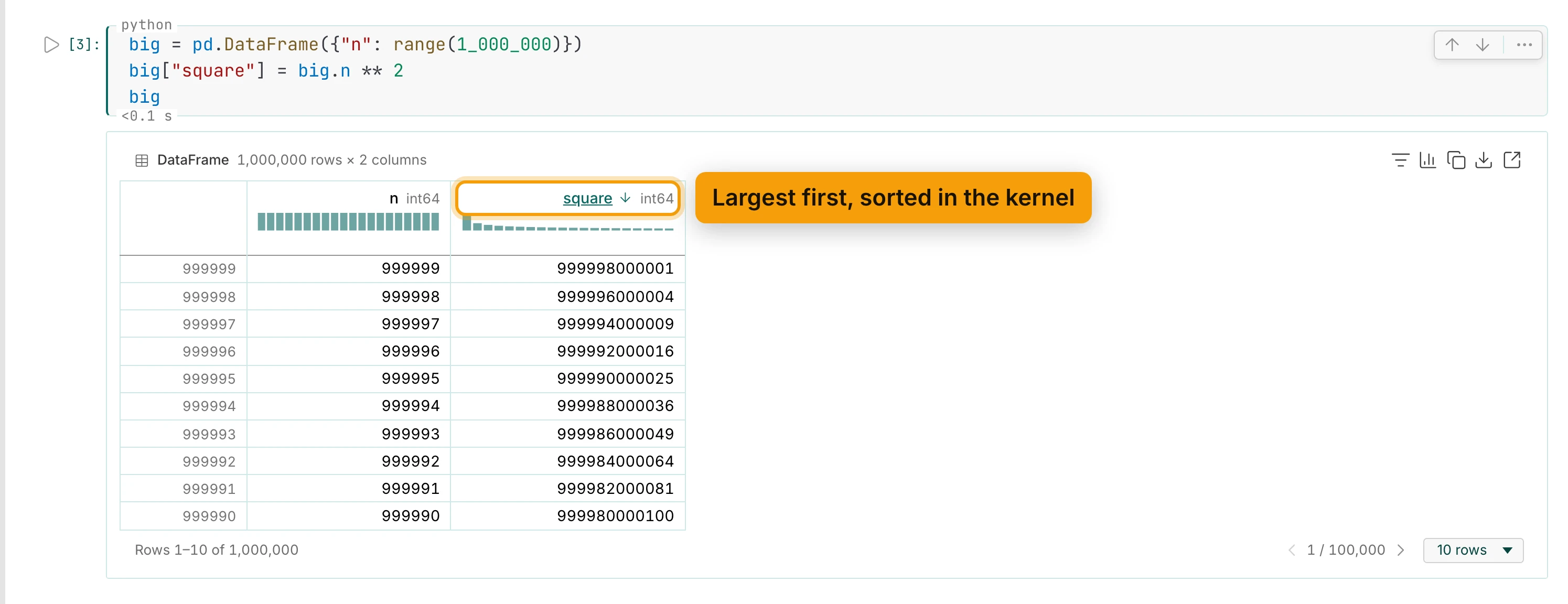
Run it. The grid appears straight away, because only the ten rows on screen come to the browser.
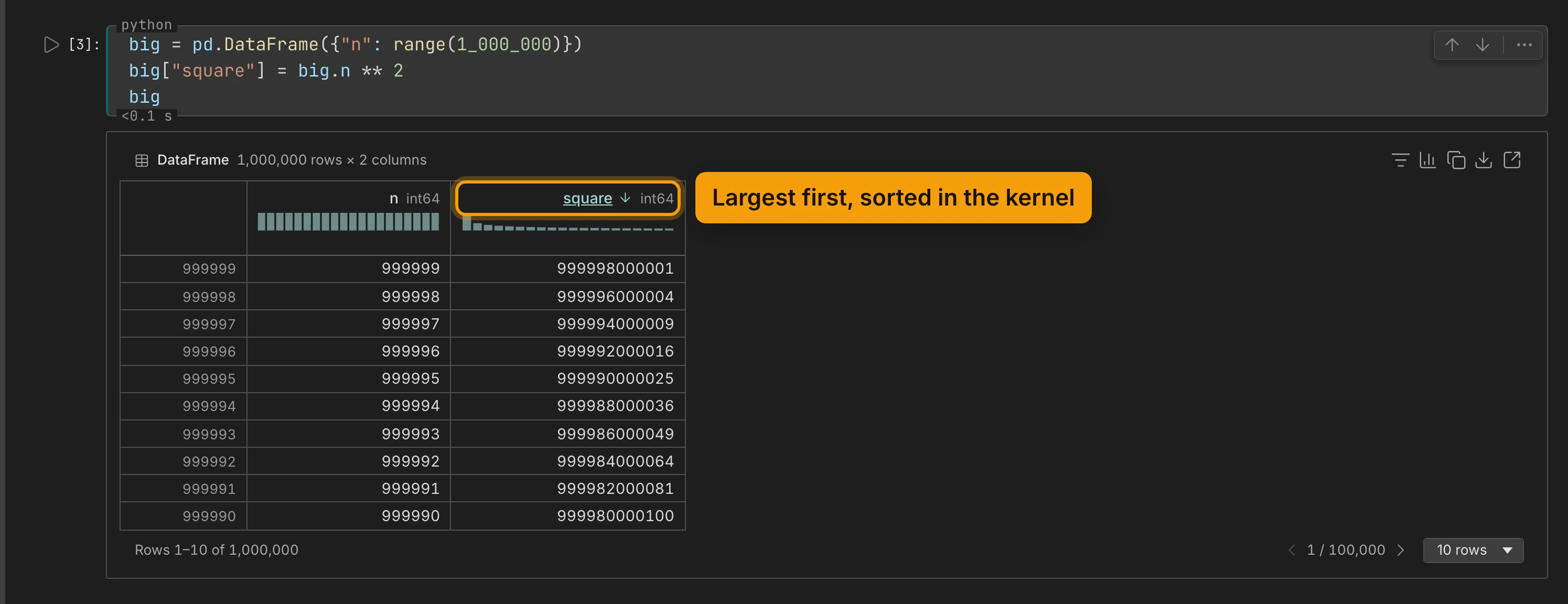
Sorting a million rows is just as quick. Click the square header and choose Sort descending. The
kernel sorts, and sends back one page.
Open It In A Tab
For a closer look, press Open in a tab, the last button in the grid’s bar. The table opens in a
tab of its own, named Out[n] after the cell’s count, with the filters, sort and columns it had. There
it scrolls, all the way through. It reads rows as they come into view, so the far end of a million
rows is as quick to reach as the start.
The Variables panel, under the editor, lists everything the kernel holds, with each one’s type and size. Open it from its tab in the dock, or with Variables in the command palette. Any table there opens the same way: click its row.
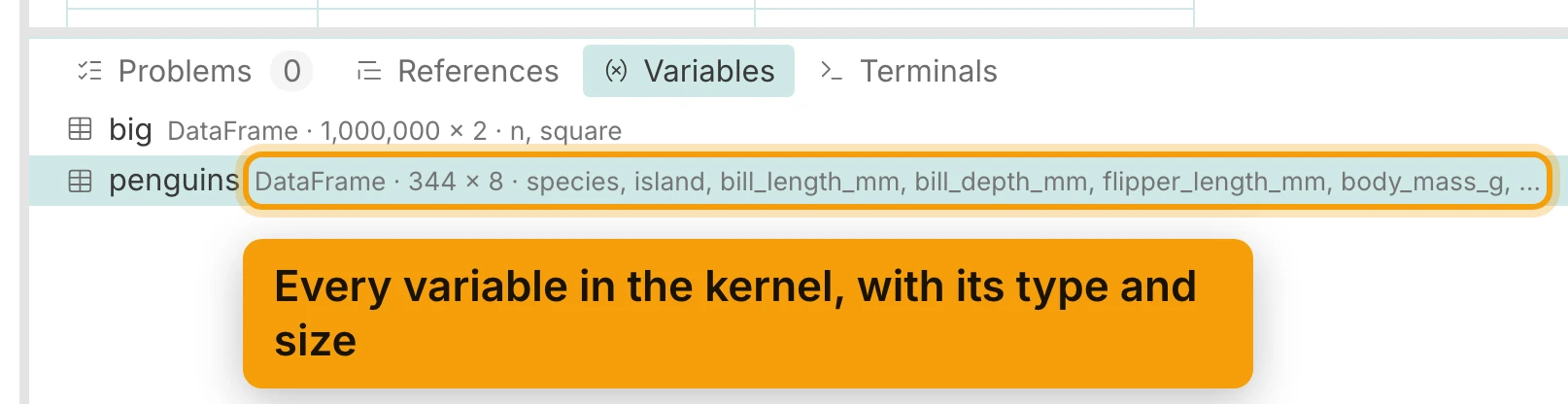
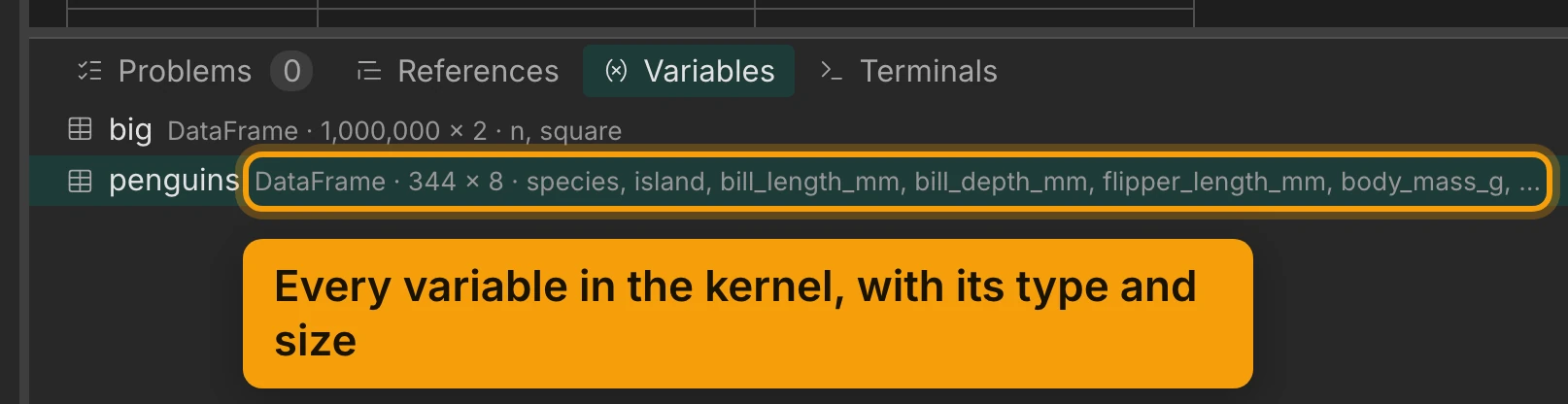
Chart It, And Keep The Chart As Code
Back in the notebook, any grid can become a chart. Press Show as a chart in the penguins grid’s
bar. The chart uses the same rows as the grid, filter included. The kernel counts them, and the grid’s
sort does not apply.
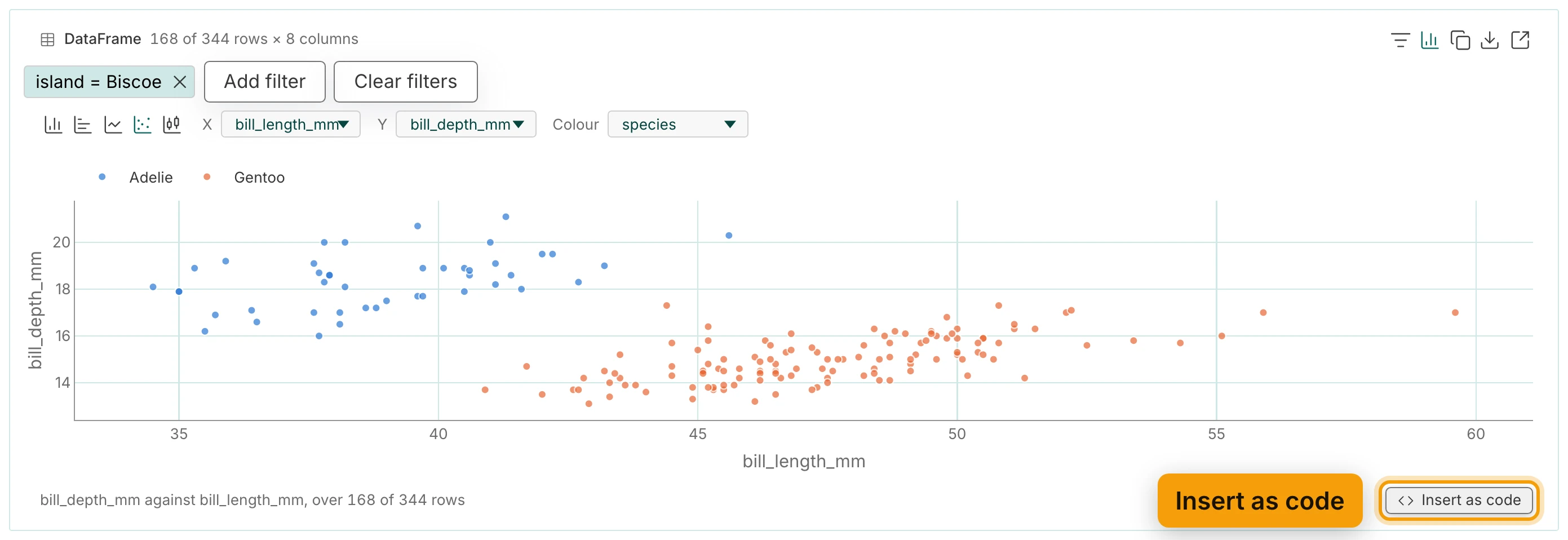
The buttons at the left of the chart pick its kind: Histogram, Bar, Line, Scatter or
Box. Pick Scatter, choose the columns for X and Y, and set Colour to species.
With the Biscoe filter on, two species are left: Adelie and Gentoo.
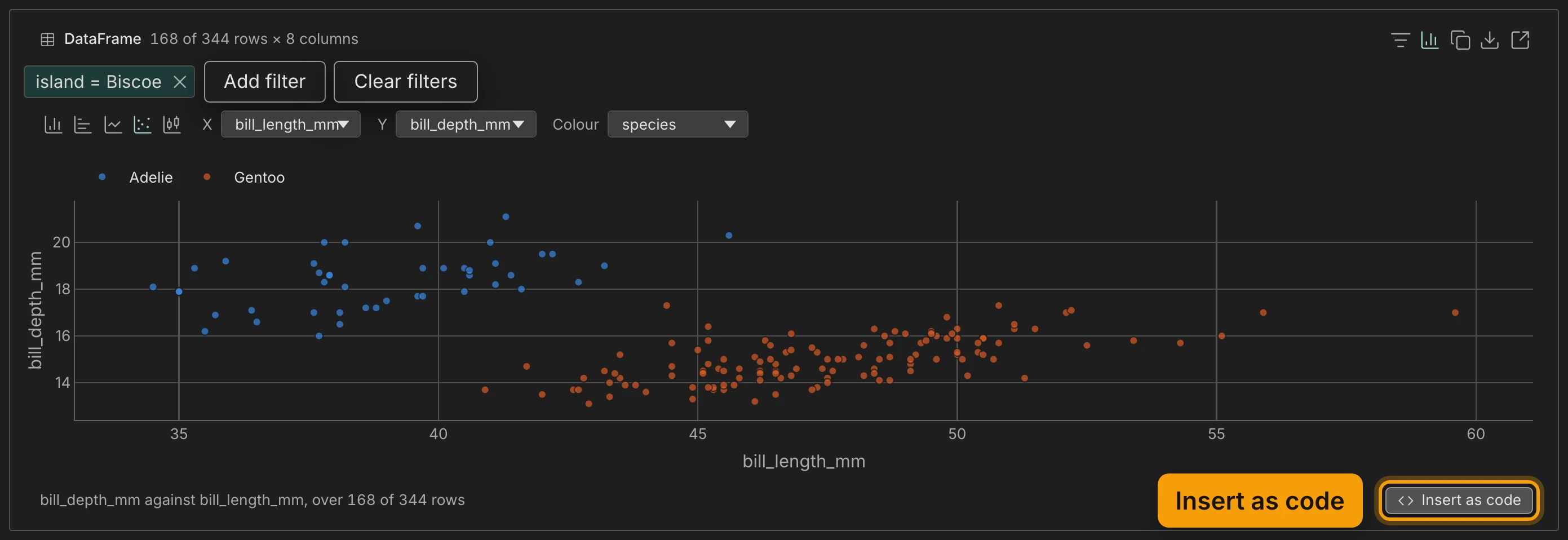
When the chart is right, Insert as code writes the Plotly code for it into a new cell below, with the filter. It does not run it. Run that cell, and the notebook draws the chart again by itself.
The chart itself is never saved in the notebook; the code is. Insert as code needs a name to write
against, so it works when the cell ends in a bare name such as penguins. For an expression such as
penguins.head(), the button is disabled and says why.
Recap
- A displayed DataFrame is a grid
- Headers show type, spread, and gaps
- Sort and filter, computed in the kernel
- A million rows page instantly
- Open tables and variables in a tab
- Chart it, then insert the chart as code
Next: Exploring Data has the rest of the grid and the charts for reference, then Keep a Run Going When You Close the Browser. To get a DataFrame out of a database instead, try Query Data with SQL.
