Watch Kernel Memory
In this tutorial you make a kernel hold two gigabytes, and watch Zasper show it. You read the figure in the status bar, then open its meters. Then you close the notebook’s tab, which leaves the kernel running, find it in the Jupyter info panel, and shut it down.
There is no notebook to download. You type three lines into a new notebook, on a Python kernel with numpy in it. The kernel from zasper-tutorials, Python (zasper-tutorials), has numpy; the repository’s README sets it up. This page assumes Zasper is installed and open on a folder you can write to. Memory is read on macOS and Linux. On Windows, Zasper shows none of it.
Read The Kernel’s Memory In The Status Bar
On the Launcher, under Notebook, press the Python (zasper-tutorials) tile. A new notebook opens
as Untitled.ipynb. Type this into its first cell:
import numpy as np

block = np.ones((256, 1024, 1024))
That is 256 × 1024 × 1024 numbers of 8 bytes each: 2 GB. np.ones writes every one of them, so the
memory is really in use. Run the cell:
| Action | macOS | Windows / Linux |
|---|---|---|
| Run Cell and Select Next | Shift+Enter |
Shift+Enter |
| Save Notebook | ⌘S |
Ctrl+S |
| Close a menu | Escape |
Escape |
Now look at the right-hand end of the status bar. While a notebook with a running kernel is in front, it shows the memory that notebook’s kernel holds. It reads about 2 GB.

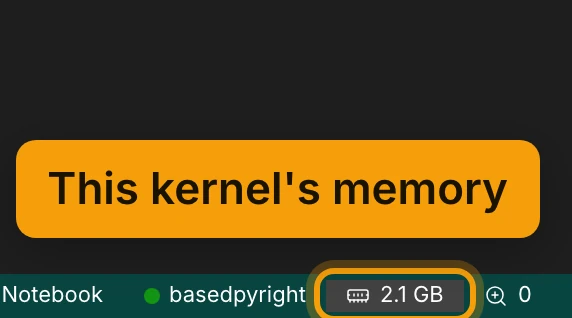
The figure counts the kernel and every process it started. A DataLoader’s workers or a
multiprocessing pool started from a cell are in it too.
Open The Meters
Press the figure. A menu opens upwards, with two meters under Memory:
- This kernel: the kernel’s memory, measured against the machine’s. The line under it says what the figure counts. Here it is The kernel alone.
- This machine: how much of the machine’s memory is in use, out of how much. Inside a container with a memory limit, this meter is This container, and it is measured against the limit, since that is where the kernel would be stopped.
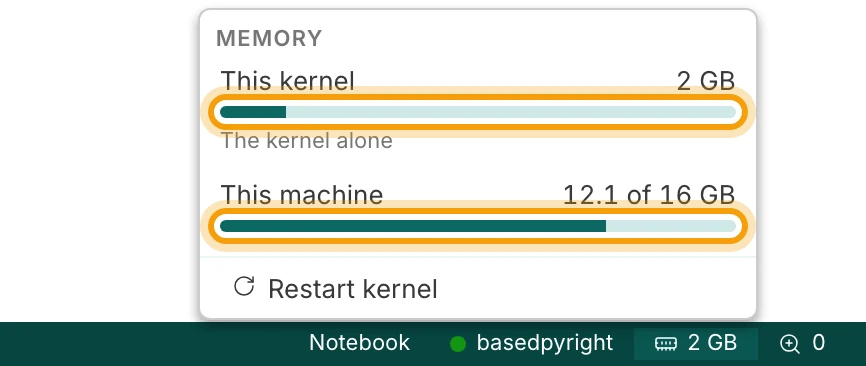
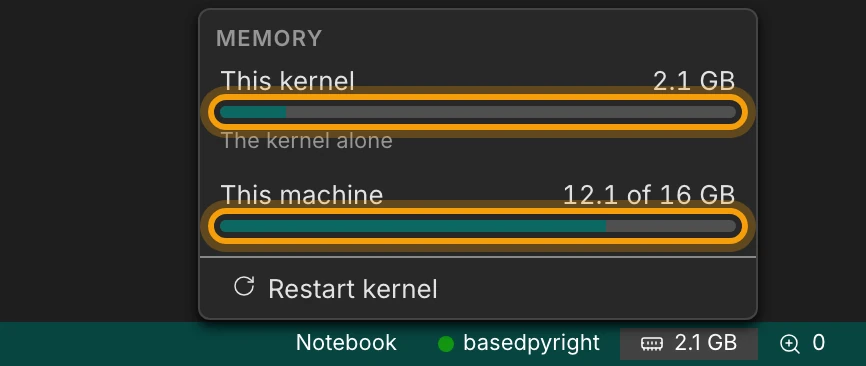
At the foot of the menu is Restart kernel, the notebook’s own command, which asks before it does anything. Restarting is the one way to give all of a kernel’s memory back and keep the notebook open.
From 90% full, a meter takes the warning colour. The status bar figure keeps its colour, but its icon
turns to a warning and it says how full the machine is, for example 5.1 GB · machine 94%.
Press Escape to close the menu.
Find The Kernel You Forgot, And Shut It Down
Closing a notebook’s tab does not stop its kernel. That is useful when a long run should go on. It also means a notebook you closed hours ago can still hold its memory.
Close the Untitled.ipynb tab with the × on the tab. Zasper asks about Unsaved changes: press
Save. The notebook is gone from view, and the status bar no longer shows a memory figure. The
Launcher, now in front, lists the kernel under Running, marked no tab.
Open the Jupyter info panel, the chip icon in the rail on the left. It lists every kernel the server runs, whatever window or tab started it:
- This machine comes first: a Memory meter for the whole machine, and a line saying how much of it is in the kernels below. Here, about 2 GB.
- Running kernels lists each kernel on a row: its name, the notebook it runs, its memory, and how
long since it last did anything:
now, then3m,2hand so on. An idle kernel with a big figure and a long time beside it is the one you forgot.
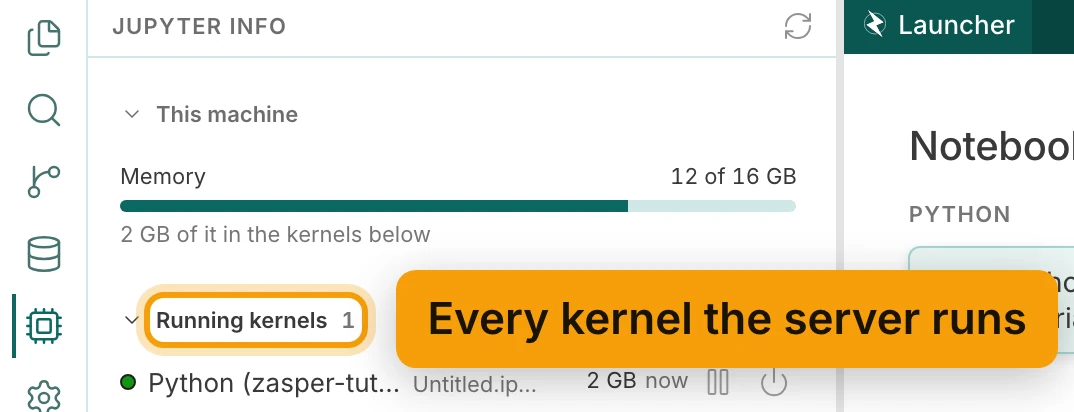
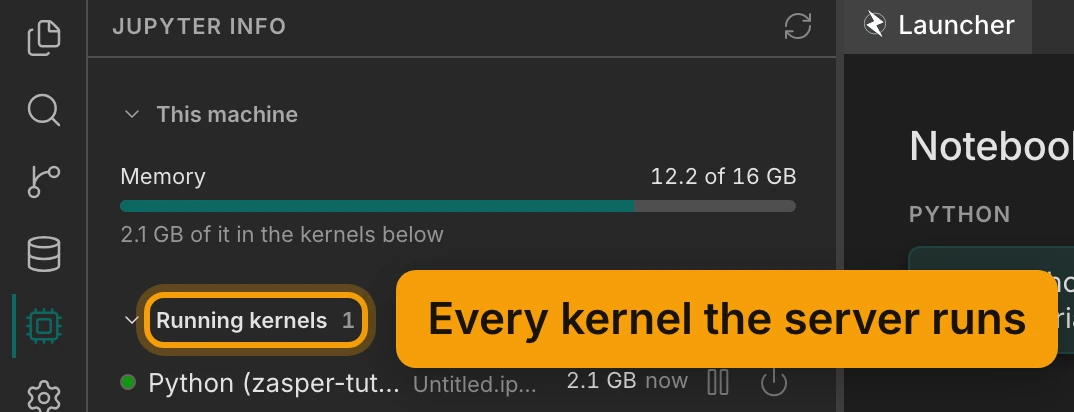
Rows keep their order, oldest first, so a row does not move under the pointer. To find the kernel holding the most, read down the memory figures. Rest the pointer on a row for more: the path in full, when it was last active, and how many clients are attached. 0 clients attached means no tab is open on it, which is what a forgotten kernel looks like.
At the right of the row are two buttons: Interrupt, which stops a running cell and keeps what the kernel holds, and Shut down, the power icon. Press Shut down. Zasper asks first:


Press Shut down. The kernel stops, and its memory goes back to the machine. Running kernels now says No kernels running. The notebook itself is still on disk, saved.
Watch A GPU While It Trains
On a machine with NVIDIA GPUs, the same places show GPU memory too, read through nvidia-smi. The
status bar adds the GPU memory the kernel holds and how busy that GPU is. The menu adds meters for each
GPU the kernel uses, for its share and for how busy the device is, and the Jupyter info panel adds one per GPU under This machine, naming the
notebook that holds most of it. So you can watch a training run fill a GPU without nvidia-smi open in
another terminal. This tutorial was made on a Mac, which has no NVIDIA GPU;
Exploring Data covers GPUs and containers.
Recap
- The status bar shows the kernel’s memory and GPU
- Its menu has meters for the kernel and the machine
- Jupyter info lists every running kernel, with its memory
- Shut down the one you forgot
- See the GPU without
nvidia-smi
Next: Exploring Data for reference, then Get Completions and Hovers in a Notebook.
