Work in a Terminal
Zasper has a terminal built in, so you can install a package, run the tests or check git log
without leaving the window.
Open One
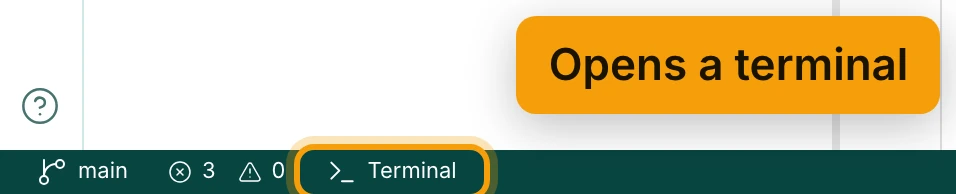
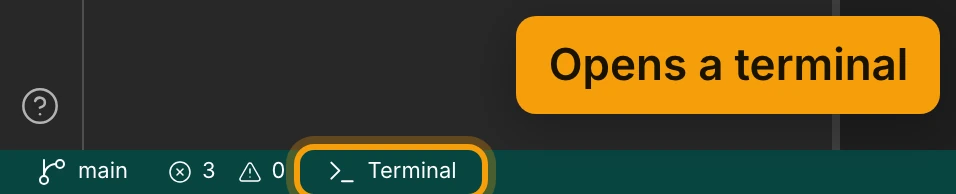
The Terminal button is in the status bar, at the bottom of the window, after the branch name and the problem counts. It is there whatever tab is in front. The first click starts a shell in the project root; after that, it shows the shells you have.
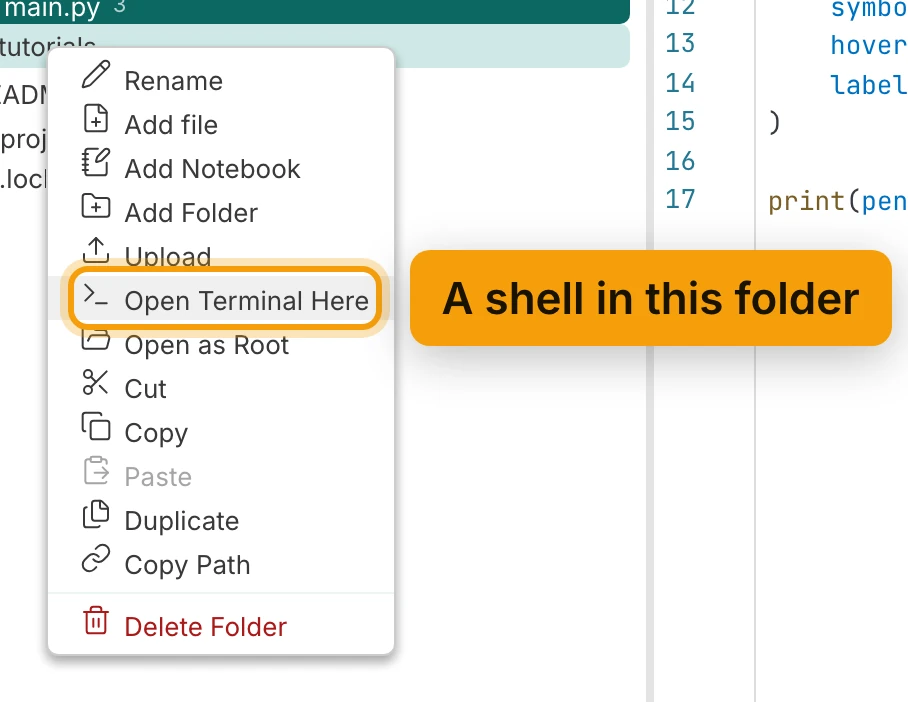
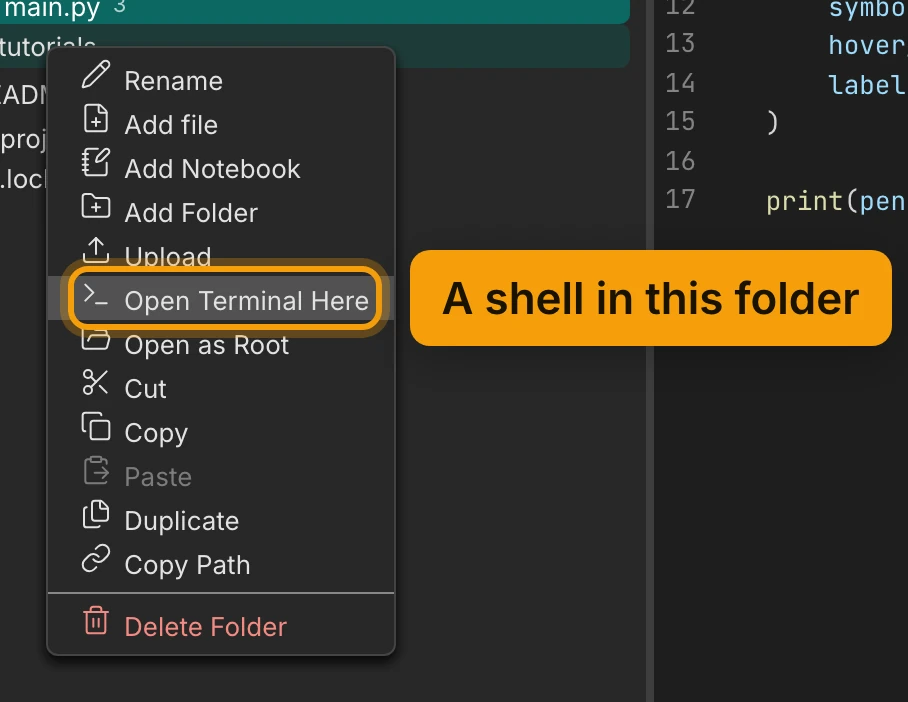
To start one somewhere other than the project root, right-click a folder in the file explorer and choose Open Terminal Here. The shell starts in that folder.
A terminal opens in the Terminals panel under the editor, beside Problems, References and Variables, so the file you are working on stays in view above it.
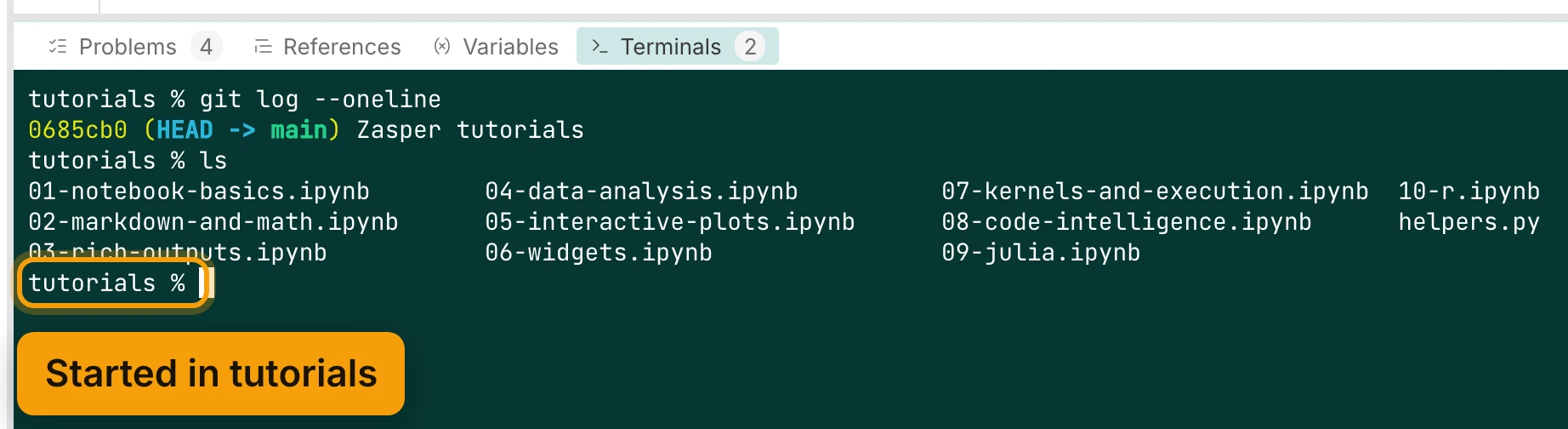
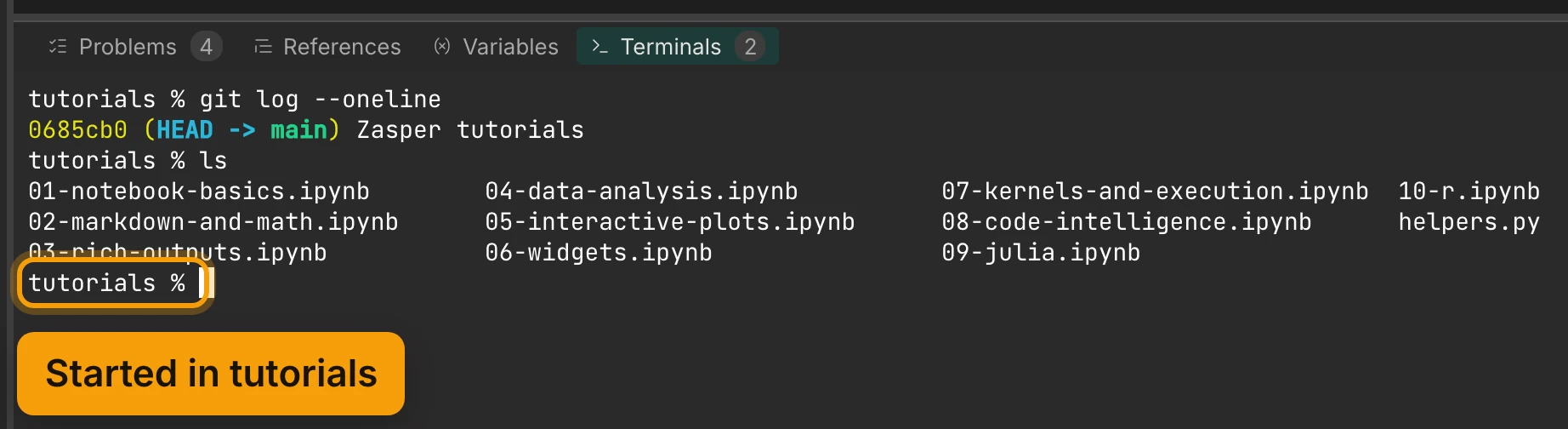
Toggle Terminal shows and hides the panel. Its chord is ⌃` on macOS (Control, not Command)
and Ctrl+` elsewhere, and it is in the command palette too.
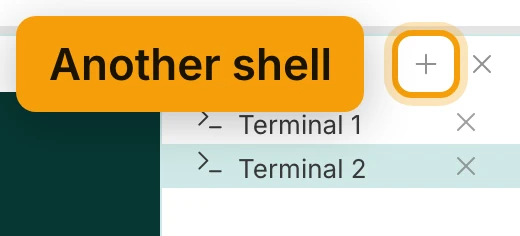
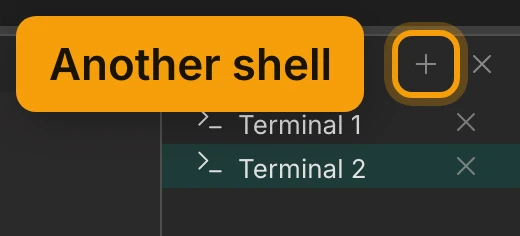
Open as many as you want with New terminal, the + in the panel’s header. Each one is its own shell, started in the project root. The list beside it names them Terminal 1, Terminal 2 and so on, and switches between them. Close one with the × on its row.
Which Shell It Runs
Zasper starts whatever $SHELL names, as a login shell, so your prompt, aliases and PATH
are the ones you already have. If $SHELL is empty or names something that is not installed, it falls
back to the shell your account lists, and then to /bin/sh.
That is also why a conda or uv environment you activate in a terminal behaves exactly as it does outside Zasper. Working with Conda and Working with UV cover making those environments into kernels.
The text scales with the rest of the window: Zoom In and Zoom Out (⌘+ / ⌘- on macOS,
Ctrl with the same keys elsewhere) scale code, output and terminal text together.
What A Terminal Is Not
It does not come back. Zasper reopens the tabs you had, but not terminals, because a new connection starts a new shell with nothing of the old one in it. Anything you want to keep, keep in a script.
It is not available on Windows. When the Zasper server runs on Windows there is no terminal button and no Open Terminal Here, because the terminal backend is built on a Unix pseudo-terminal. Running the server under WSL gives you both, and is the recommended way to use Zasper on Windows. Installation has the details.
Next: Share a Notebook.
