Use R, Julia or Any Kernel
Zasper runs any Jupyter kernel. In this tutorial you find the kernels you have, register a uv environment as a new one, move a notebook to another kernel, and run the same penguins in R and in Julia.
The notebooks are live-talk/06-r.ipynb and live-talk/05-julia.ipynb from
zasper-tutorials. Its README sets up their kernels:
R (zasper-tutorials), with dplyr and ggplot2, and IJulia for Julia. This page assumes Zasper is
installed and open on that folder. With only R or only Julia, skip the other’s
chapter.
Find Your Kernels In The Launcher
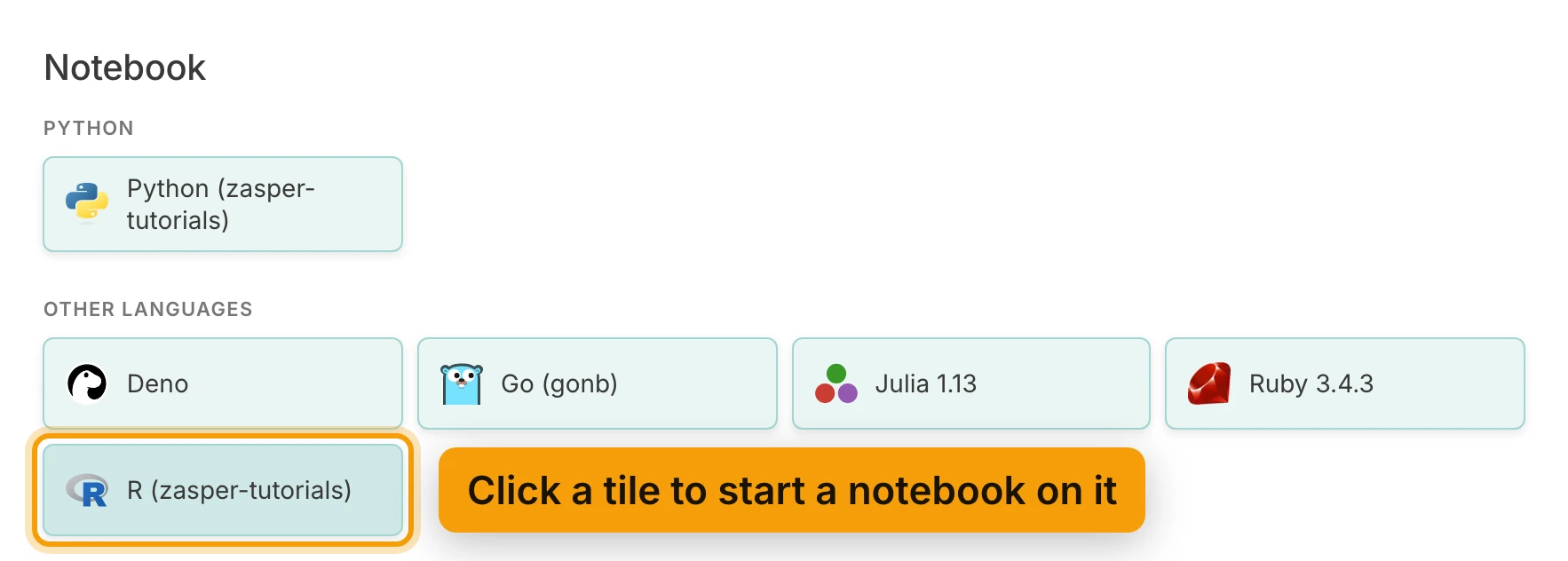
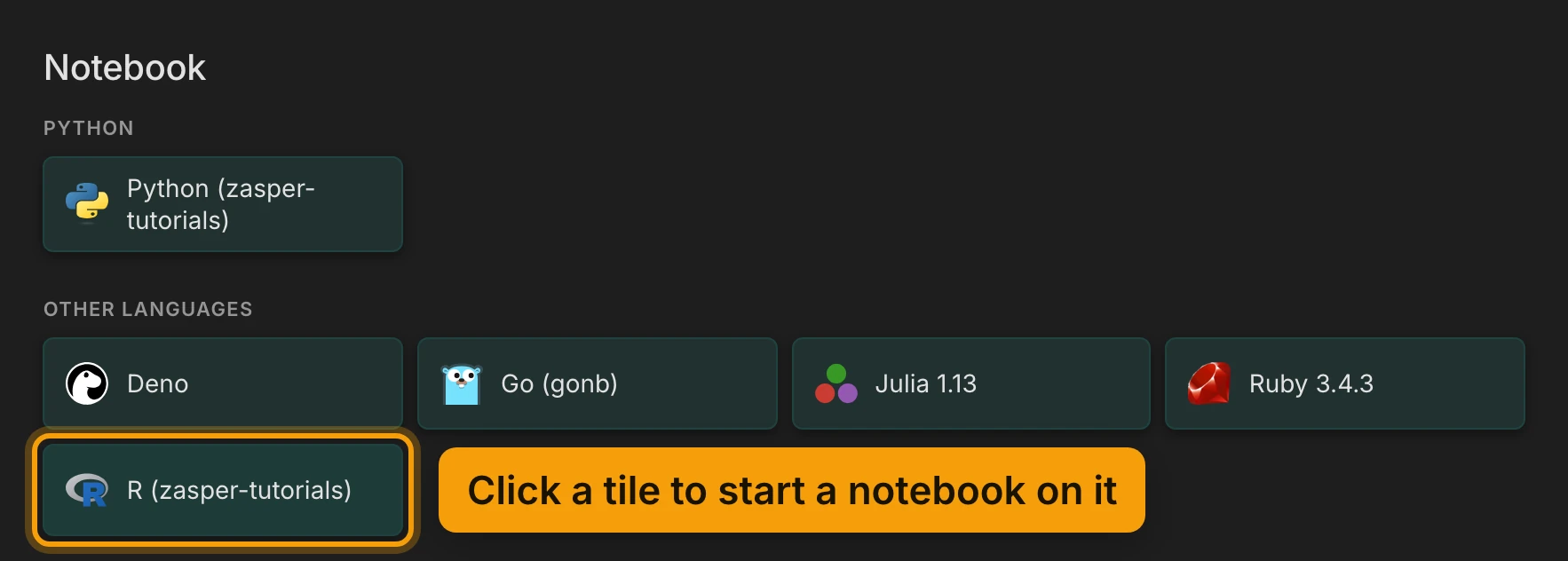
The Launcher is the tab Zasper opens on. Under Notebook it has a tile for each kernel it finds. Your project’s own environment comes first, under This project, if it has one. Python kernels come next, under Python. A language with several kernels gets a group of its own. The rest share Other languages.
Zasper finds a kernel by its kernelspec, the folder with a kernel.json that each kernel’s installer
writes. It looks in the same places Jupyter does. It also lists two kinds of kernel that have no
kernelspec: your project’s own .venv, and the Pythons it finds that have ipykernel installed.
Installing Jupyter Kernels lists every place it looks. Run
jupyter kernelspec list to see what is registered on your machine.
Click a tile to start a new notebook on that kernel.
Register A uv Environment
A uv project becomes a kernel in three commands: make the project, add ipykernel to it, and register
it. Run them in a terminal, in Zasper’s own or any other:
uv init demo && cd demo
uv add ipykernel
uv run python -m ipykernel install --user --name=demo
The last command prints Installed kernelspec demo in and the folder it wrote. The kernel is called
demo. To show a different name in the Launcher, add --display-name "Python (demo)".
Run them outside any other uv project. Inside one, uv init adds demo to that project’s workspace
instead of making a project of its own.
Zasper reads the list of kernels when it loads. Reload the page, and demo has a tile under Python.


It also appears in every notebook’s kernel picker. A conda environment works the same
way: install ipykernel into it and register it. See Working with Conda.
Switch A Notebook’s Kernel
Every notebook runs on one kernel. Its name, with a status dot, is at the right-hand end of the notebook’s toolbar. The dot is green while the kernel is idle.
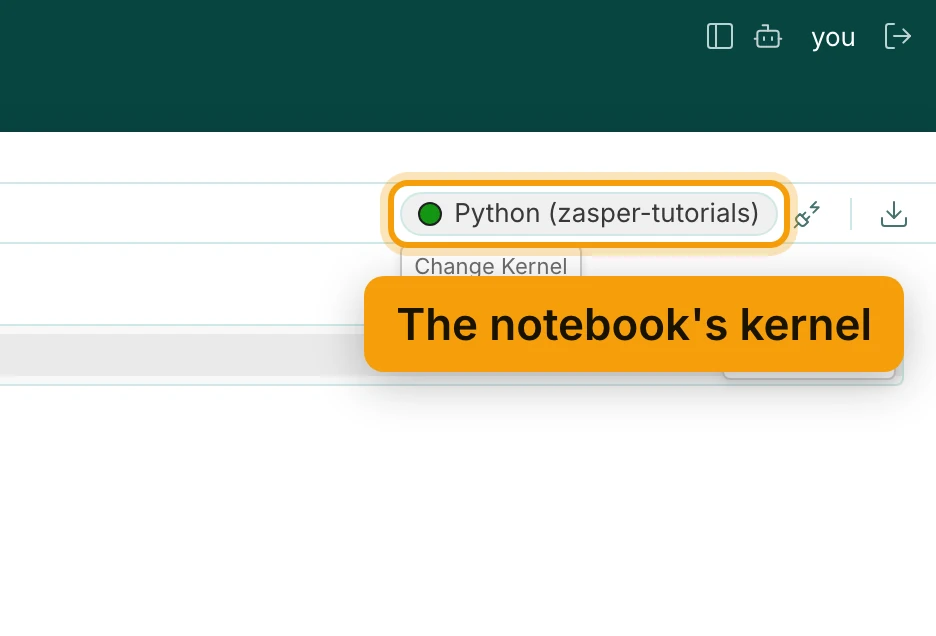
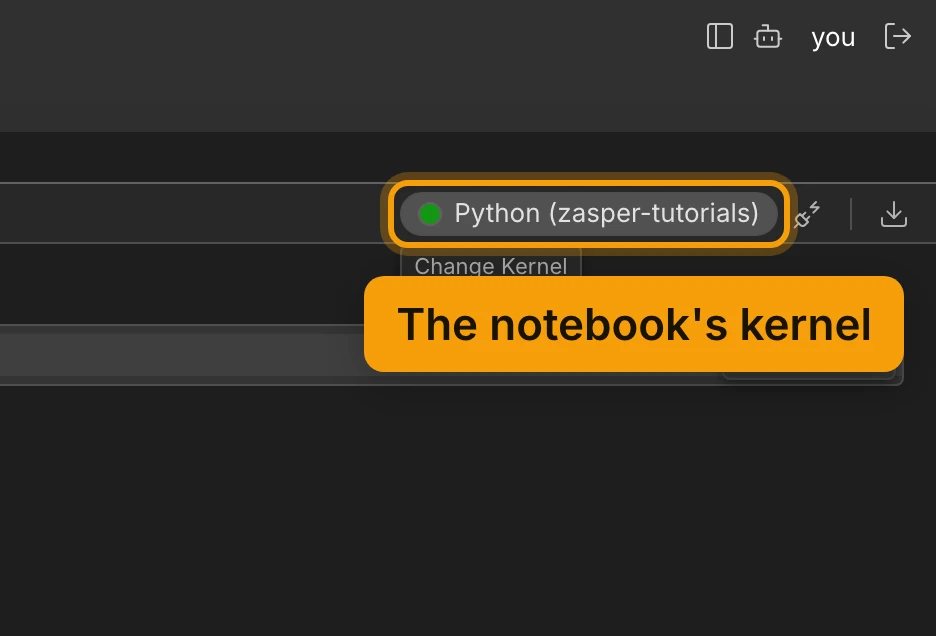
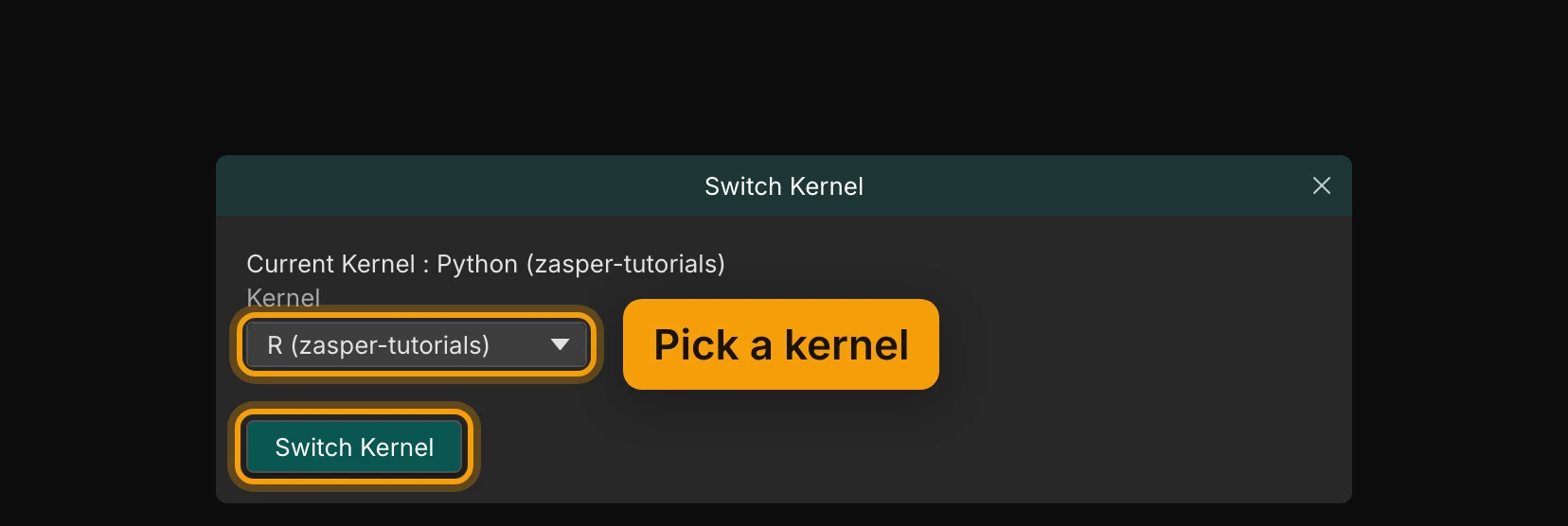
Click the name. A dialog called Switch Kernel opens. It says which kernel the notebook is on now, under Current Kernel. Pick another from the Kernel list and press Switch Kernel.
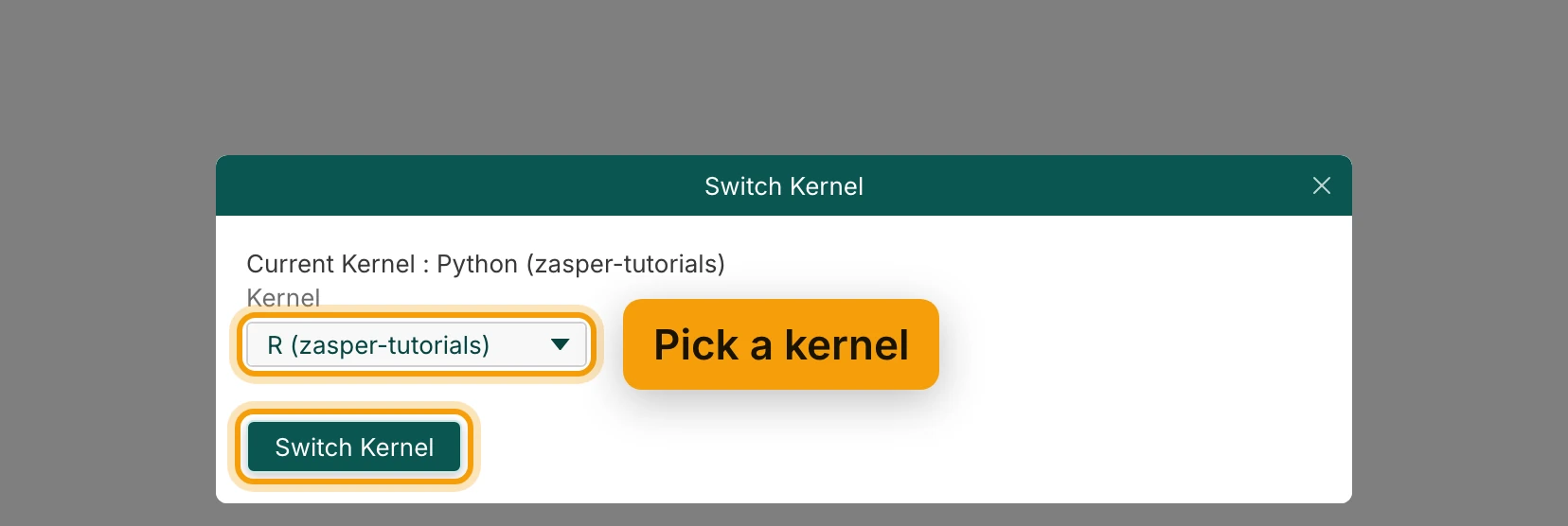
Zasper stops the old kernel and starts the new one. The name in the toolbar changes to the new kernel.
Your code and outputs stay, but the variables were in the old kernel, so run the cells again. Escape
closes the dialog and leaves the kernel as it was. Change Kernel in the command palette opens the
same dialog.
The notebook remembers its kernel. Saving writes the kernel’s name into the .ipynb file, and opening
the file again starts that kernel. If a notebook names a kernel you don’t have, as one from another
machine might, Zasper asks which kernel to use instead.
Run The Penguins In R
Open live-talk/06-r.ipynb. It is saved on R (zasper-tutorials), so that kernel starts by itself.
Run its cells from the top:
| Action | macOS | Windows / Linux |
|---|---|---|
| Run Cell and Select Next | ⇧⏎ |
Shift+Enter |
| Run Cell | ⌃⏎ |
Ctrl+Enter |
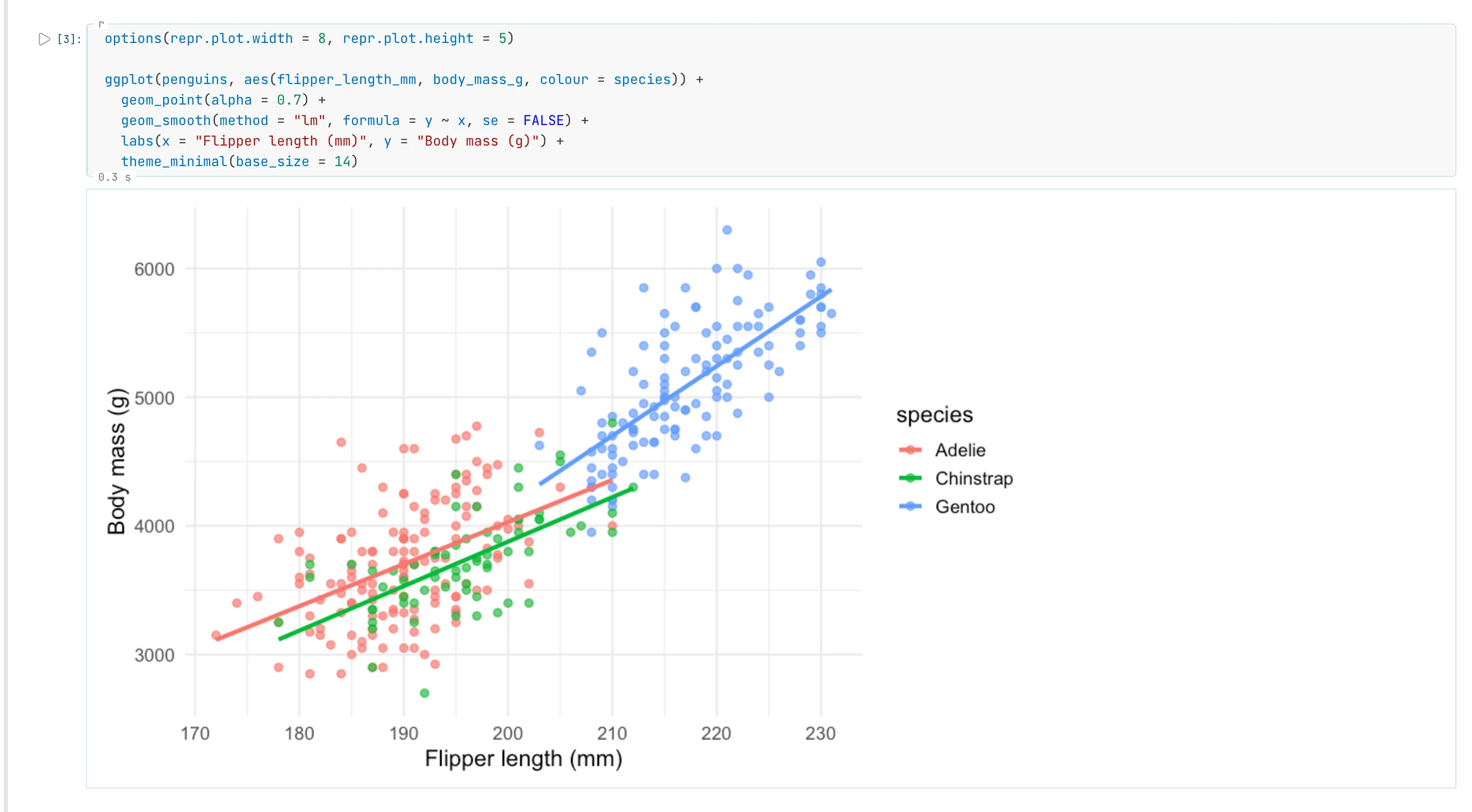
The second code cell loads dplyr and ggplot2 and reads ../data/penguins.csv. The third groups the
penguins by species with dplyr and prints the averages as a table. The fourth draws flipper length
against body mass with ggplot2, one colour and one fitted line per species.
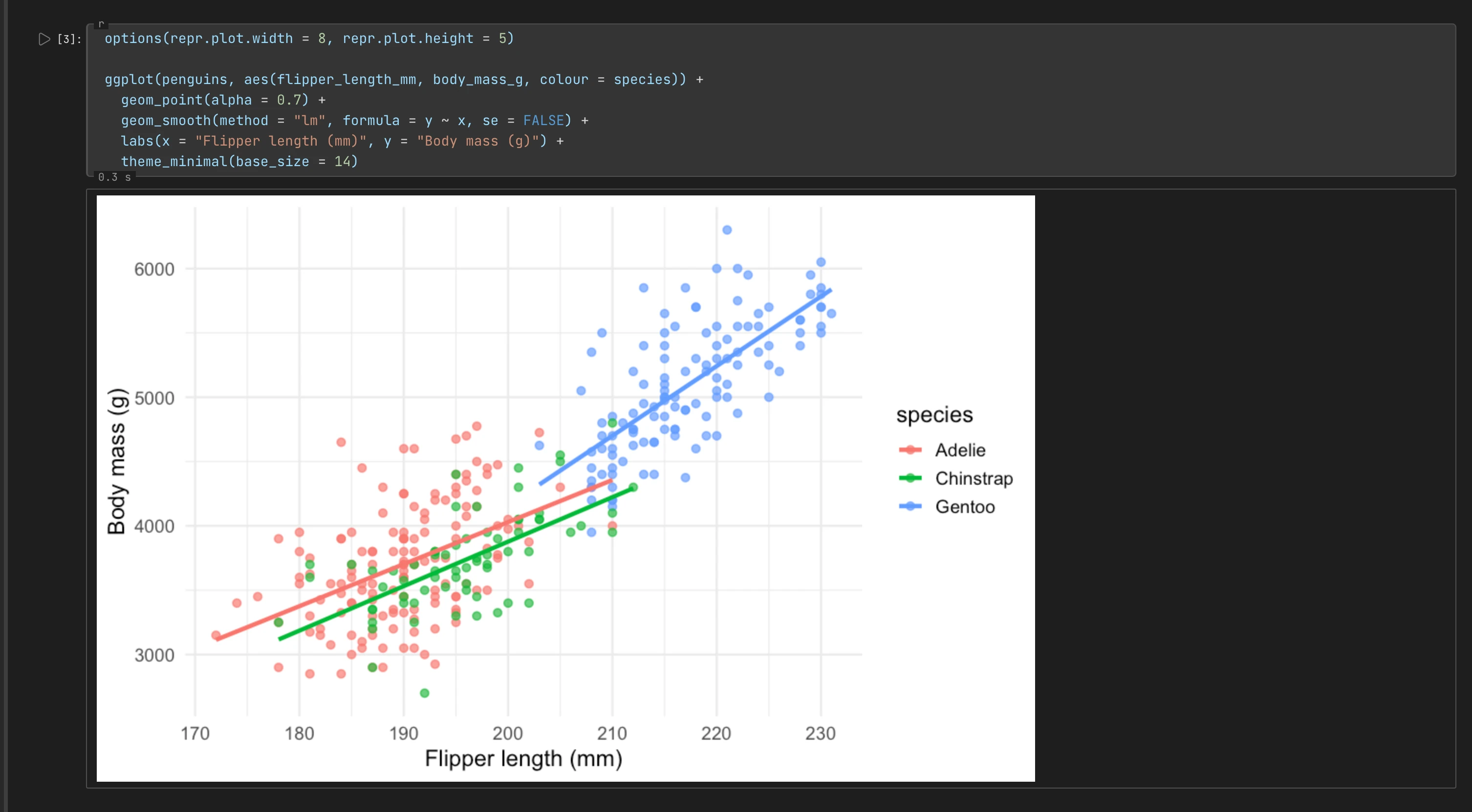
Nothing here is special to R. The cells, the outputs, the toolbar and the keys are the same as in a Python notebook. The kernel does the work and sends back what to show.
Run Them Again In Julia
Open live-talk/05-julia.ipynb. It is saved on Julia 1.13. Your Julia may be another version;
if Zasper asks for a kernel, pick yours. Run the cell under Fast loops, no vectorising needed. It
estimates pi from 100 million random points, in a plain loop, and times it with Julia’s @time.
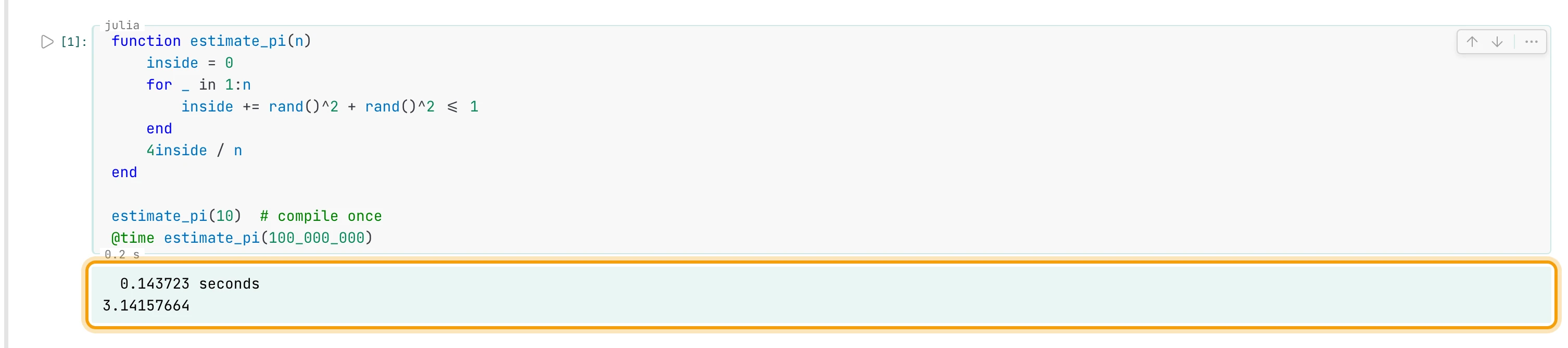
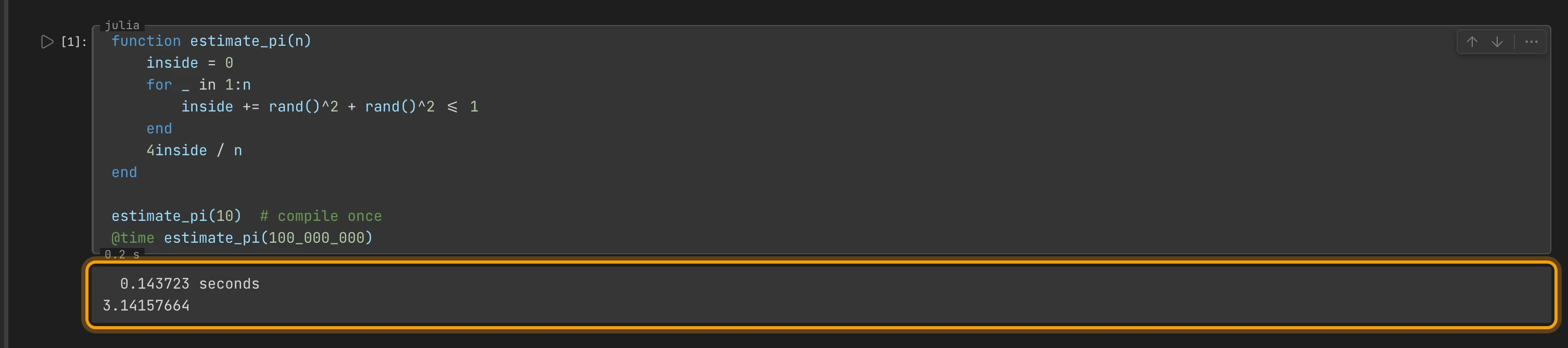
@time prints the run time first. The estimate comes after it.The time comes first because it is printed as the call runs. The estimate is the cell’s value. Your
time and your estimate will differ a little; the points are random. Further down, the notebook reads
the same penguins.csv and draws the average body mass by species as an SVG bar chart.
The same goes for Deno, Go and Ruby. If a language has a Jupyter kernel, install it as its project says, and it gets a tile in the Launcher. Installing Jupyter Kernels has the commands for each one.
Recap
- Every kernel you register is in the Launcher
- A uv environment is three commands
- Switch kernels from the notebook toolbar
- R, Julia, or anything that speaks Jupyter
Next: Installing Jupyter Kernels has every kernel’s install command and the full list of places Zasper looks. For more on the penguins, in Python this time, try Explore a DataFrame and Chart It.
