Query Data with SQL
A SQL cell runs a query on a database and leaves the answer in the kernel as a pandas DataFrame. In this tutorial you connect a database to Zasper, look at its tables, query it from a SQL cell, write a query of your own, and use the answer in Python.
The database holds the Palmer penguins: 344 penguins of three species, from three islands. The data is
data/penguins.csv in zasper-tutorials. Its README
sets up the kernel, Python (zasper-tutorials), which has pandas in it. This page assumes Zasper is
installed and open on that folder.
Connect A Database
Start a new notebook at the root of the folder: on the Launcher, pick Python (zasper-tutorials).
First, make the database. SQLite keeps a whole database in one file, and Python can write one with no extra installs. Run this in the notebook’s first cell:
import sqlite3
import pandas as pd

penguins = pd.read_csv("data/penguins.csv")
with sqlite3.connect("data/penguins.sqlite") as db:
    penguins.to_sql("penguins", db, index=False, if_exists="replace")
It writes data/penguins.sqlite, with one table, penguins, holding every row of the CSV.
| Action | macOS | Windows / Linux |
|---|---|---|
| Run Cell and Select Next | ⇧⏎ |
Shift+Enter |
Connections are set up once, in Settings. Open it from the gear in the sidebar, just above Help.
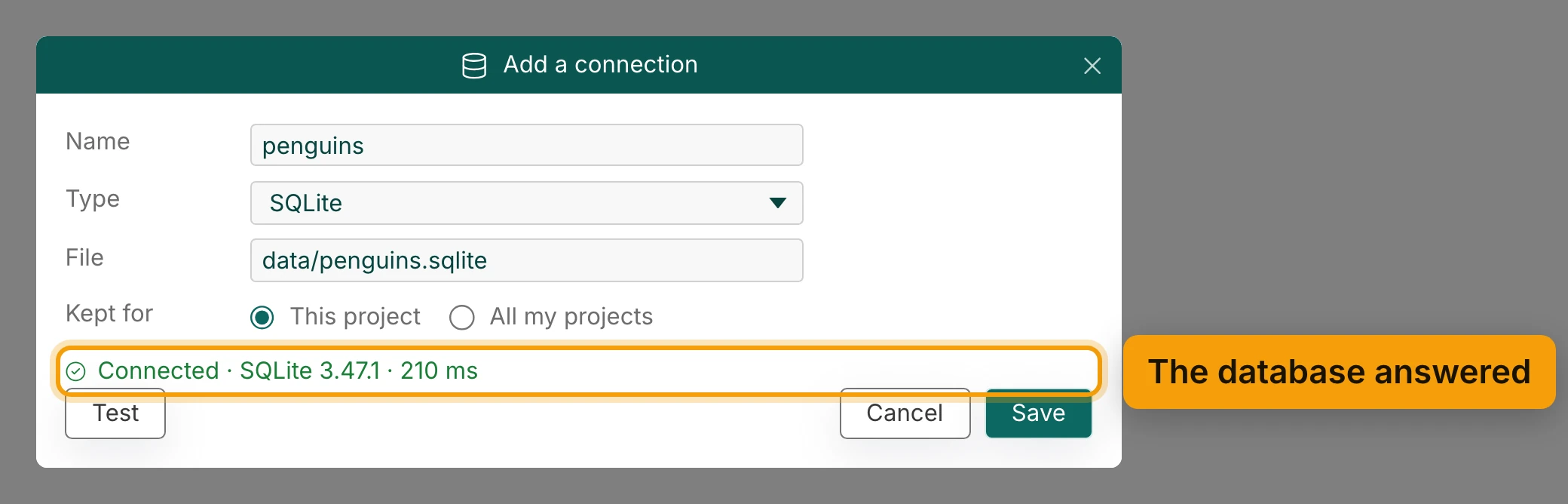
Search for connection, and press Add… beside Add a connection. Fill in the form:
- Name:
penguins. You’ll see it in every SQL cell that uses this connection. - Type: SQLite. The list also has PostgreSQL, MySQL, DuckDB, Snowflake and more.
- File:
data/penguins.sqlite. A path like this is read from your project’s folder. - Kept for: This project. The connection is saved in
.zasper/connections.json, in the project, so anyone who opens the project gets it too. Passwords are never saved there. A database that has one keeps it in your system’s keychain. SQLite has none.
Test connects with what’s in the form. It tells you which database answered, and how quickly. It works, so press Save.
Explore Its Tables
Your connections are listed in the Data panel. Open it from the database icon in the sidebar. penguins is there, under Connections.
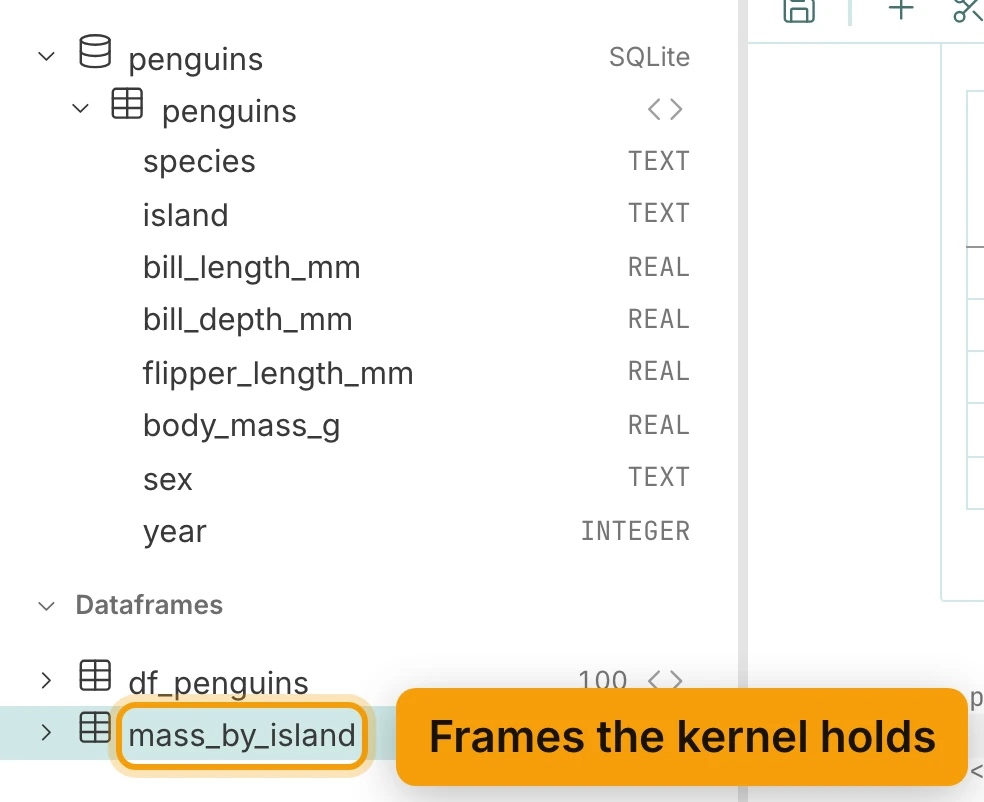
Open a connection to see its tables. Open a table to see its columns, and the type of each one,
before you write any SQL. Here there is one table, penguins. Its species, island and sex are
TEXT, the measurements are REAL, and year is an INTEGER. The last figure on this page shows the
whole tree.
Query It In A SQL Cell
Click your notebook’s tab, so the notebook is in front again. Now the penguins table’s row in the
Data panel has a button at its end. Hover over it, and its tooltip reads Query penguins in a new SQL
cell. Press it. Zasper writes a SQL cell for you, below the cell you’re in. It reads the table’s
first hundred rows.


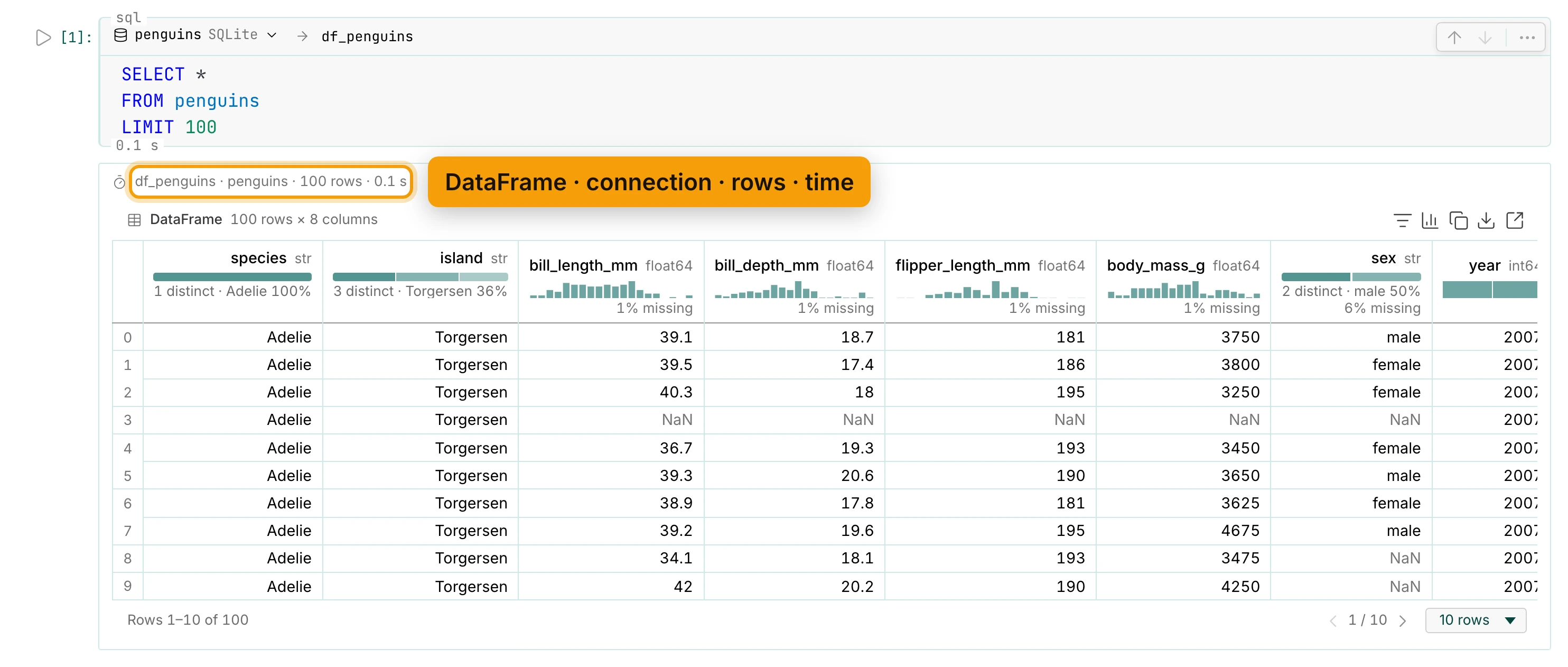
A SQL cell has a head. On the left is the connection it runs on: penguins. On the right is the
name of the DataFrame its answer goes into: df_penguins. Click either one to change it.
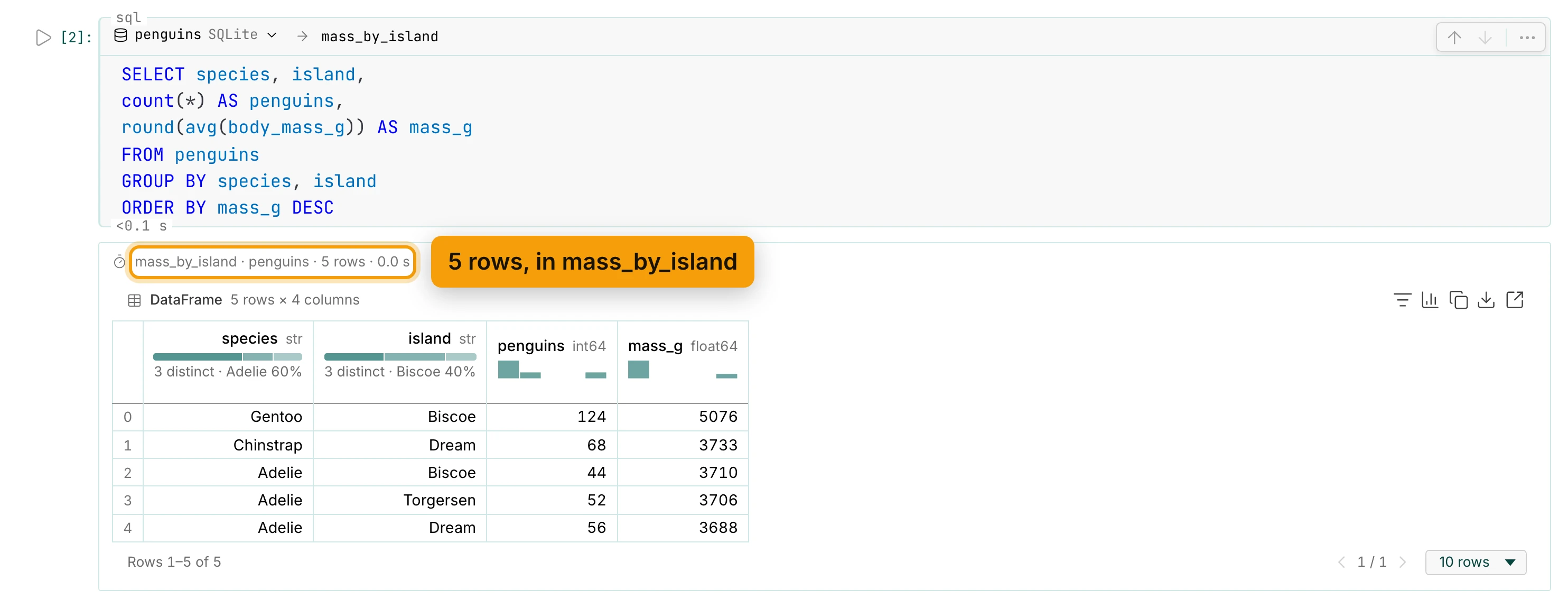
Run it like any other cell, with Shift+Enter. The first line of the output tells you where the rows came from: the DataFrame, the connection, how many rows, and how long the query took.
The answer itself is a grid, like any other DataFrame. Each column’s header shows how its values are
spread out, and how many are missing. Here, body_mass_g is missing for 1% of the hundred rows.
Write Your Own Query
Now a question of your own: how heavy is each species, on each island? Replace the query in the cell with this one. As you type, Zasper suggests the table’s columns.
SELECT species, island,
count(*) AS penguins,
round(avg(body_mass_g)) AS mass_g
FROM penguins
GROUP BY species, island
ORDER BY mass_g DESC
Give the answer a name that says what it holds. Click df_penguins in the cell’s head, and type
mass_by_island.
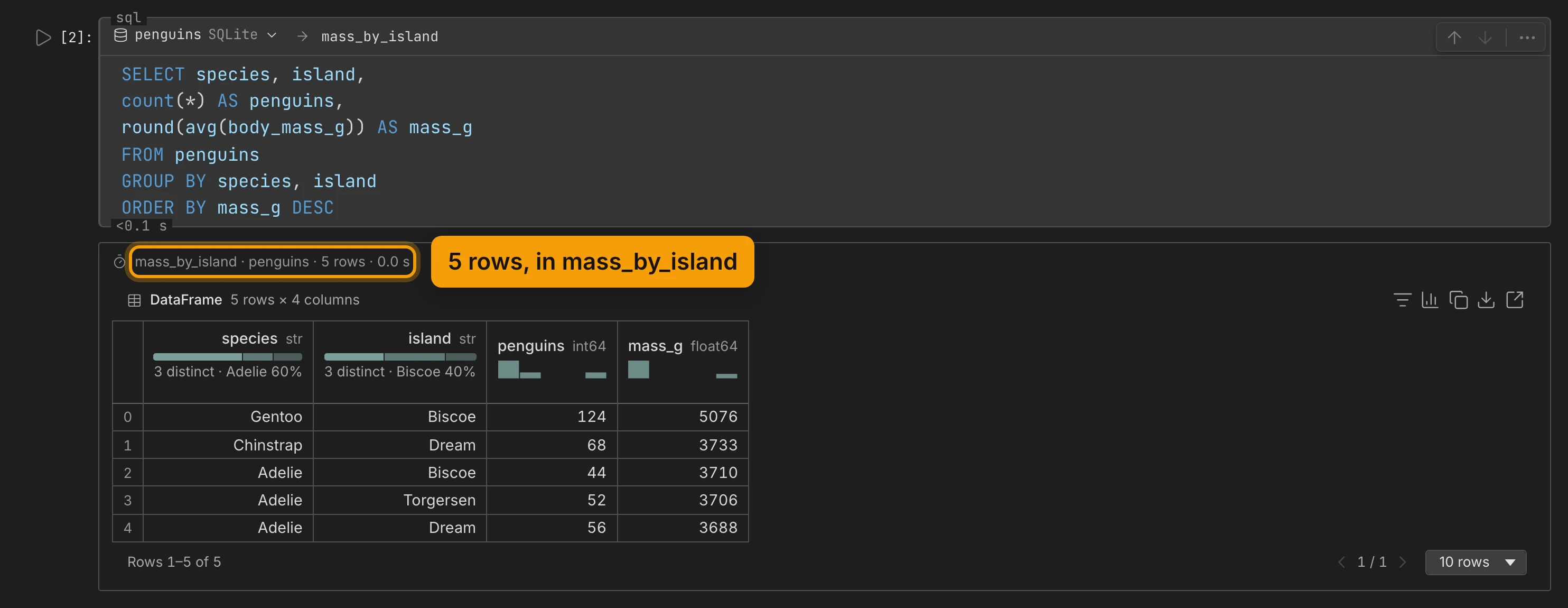
Run it. Five rows come back: one for each species on each island, the heaviest first. Gentoo live only on Biscoe, Chinstrap only on Dream, and Adelie on all three islands.
mass_by_island.The query runs in the database, and only its answer comes back. On a table of millions of rows, that is the difference between five rows and millions.
Use The Answer In Python
The answer is an ordinary pandas DataFrame in the kernel. So the next cell can use it straight away. Add a code cell below, and keep only the Adelie penguins:
mass_by_island[mass_by_island.species == "Adelie"]
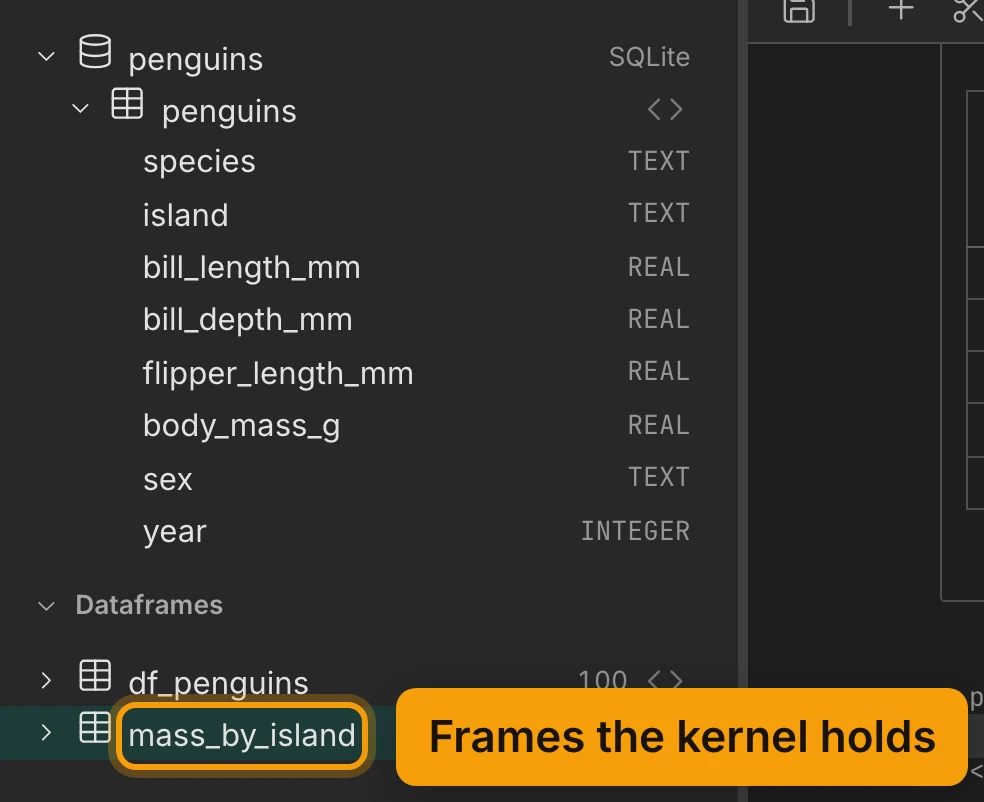
The Data panel lists mass_by_island under Dataframes, beside every other frame the kernel
holds.
In the notebook file, a SQL cell is a code cell whose first line is a cell magic,
%%zasper_sql penguins --out mass_by_island. Zasper hides that line and shows the cell’s head
instead, so the notebook stays an ordinary .ipynb. JupyterLab does not know the magic, so the cell
runs only in Zasper.
Recap
- Add a connection once, in Settings
- See tables and columns in the Data panel
- Query writes a SQL cell for you
- The cell’s head names the DataFrame
- Use it from Python in the next cell
Next: SQL Cells has the rest for reference: PostgreSQL, MySQL and the other databases, Load all for answers bigger than the limit, querying the kernel’s own DataFrames, and the answer cache. Then Work with an AI Agent.
